Get paid: checkout rules, refunds and your money
The order buyers see ways to pay in, rules and order limits per way to pay, payment failover, refunds as store credit, manual payment methods, and what every number on Balance & payouts, Financials and Fees & billing means.
Once a way to pay is connected (the complete guide), this page covers the rest of Money: how ways to pay show at checkout, refunds, manual methods, and the pages that show your money.
Checkout rules
Open Money → Payments → Checkout rules. It has three cards: At checkout, Order limits by payment method and Payment failover. Until something is connected, At checkout says No way to pay yet with a button back to Ways to pay.
The order buyers see
At checkout lists every way to pay you have, in the order buyers see them.
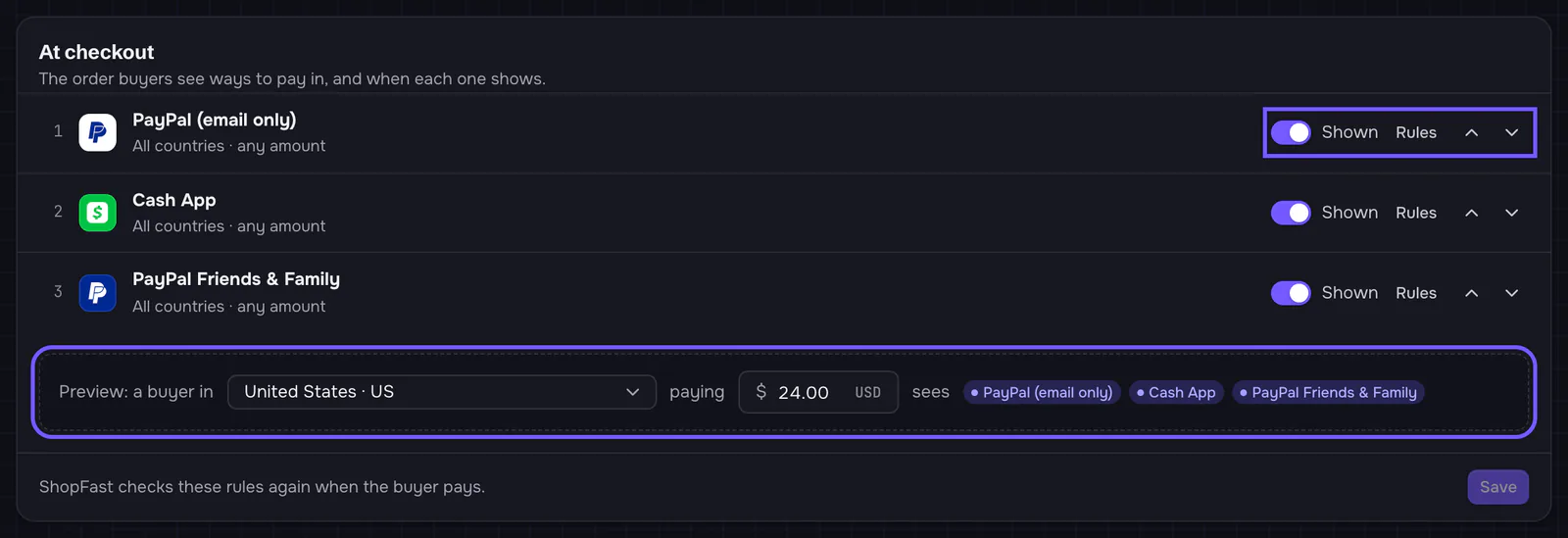
- The arrows move a way to pay up or down. Buyers see the first one first.
- Shown / Hidden takes a way to pay off checkout without disconnecting it.
- The line under each name sums up its rules, such as All countries · any amount.
- Preview: a buyer in a country paying an amount sees the ways to pay that buyer would get, with your rules and order limits applied. No way to pay means that buyer could not pay.
Click Save when you are done. Buyers see the new order on their next checkout, and ShopFast checks the rules again when the buyer pays.
Rules for one way to pay
Rules on a row opens When PayPal shows (with that way to pay’s name).
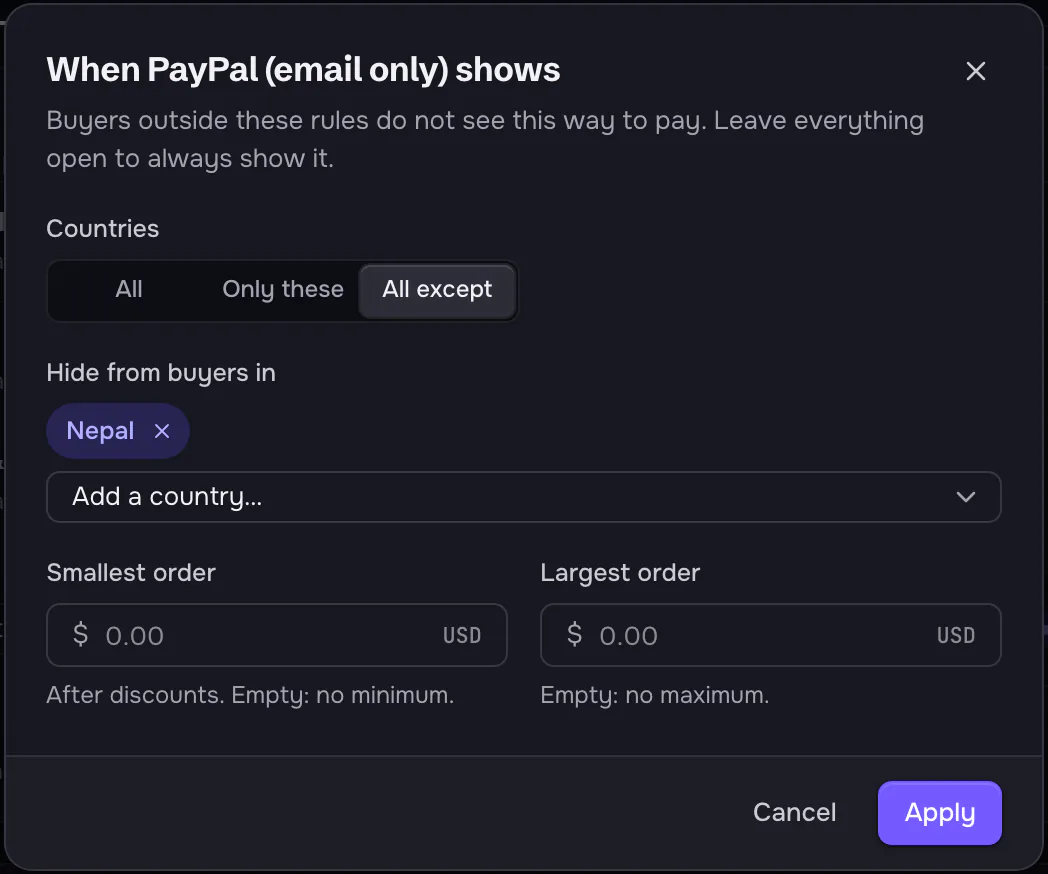
- Countries: All, Only these (pick the countries that see it) or All except (pick the ones that do not).
- Smallest order and Largest order: the order total after discounts. Leave them empty for no limit.
Click Apply, then Save on the card.
Order limits by payment method
This card sets limits per kind of payment, whichever gateway it comes from: Cards and wallets, PayPal, Crypto and Bank transfer and manual. Kinds that are not at checkout right now say so.
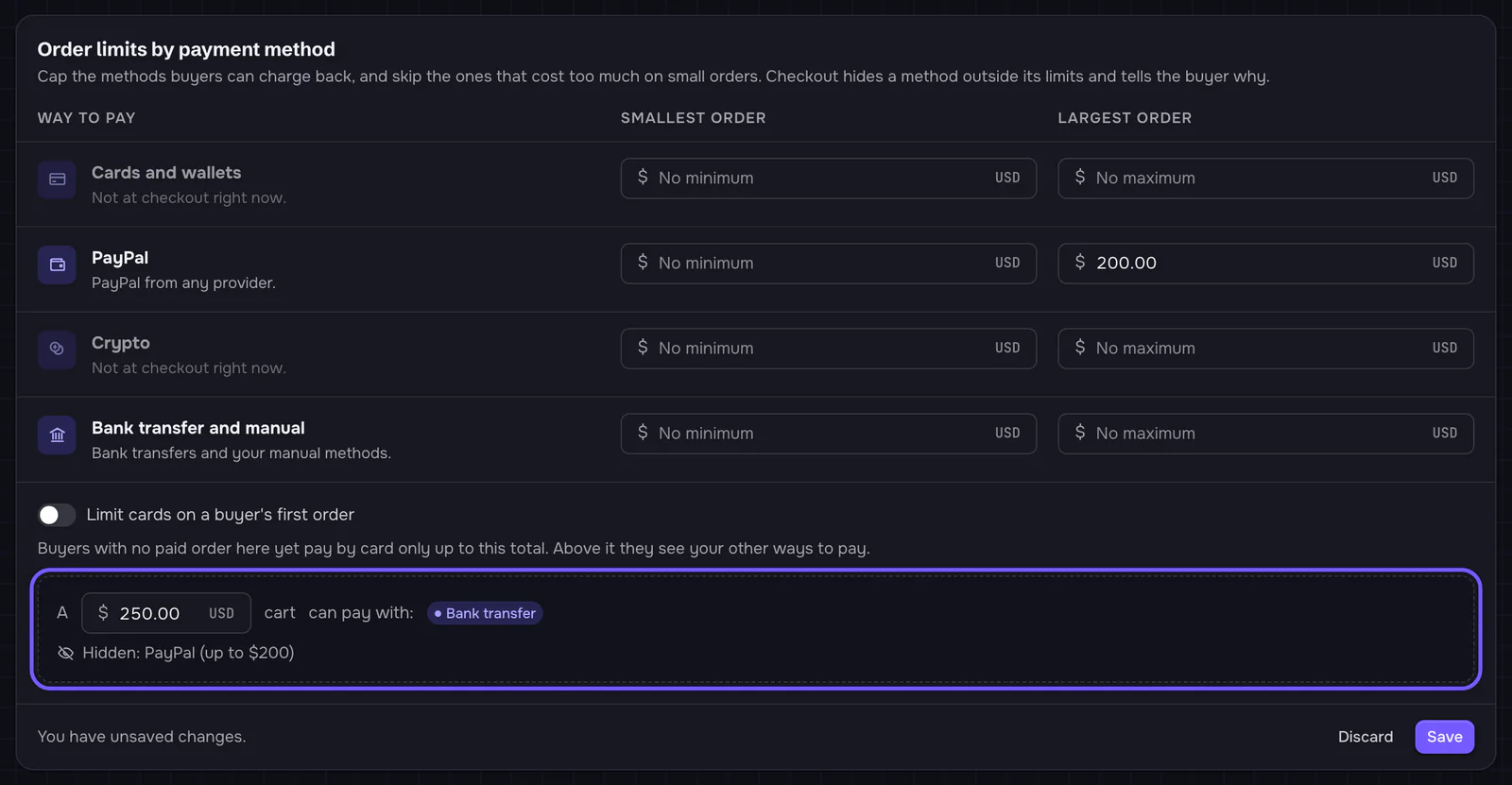
- Smallest order and Largest order for each kind. Empty means no limit.
- Limit cards on a buyer’s first order: buyers with no paid order at your store pay by card only up to the amount you set. Above it they see your other ways to pay.
- The example line runs the same rules checkout does: type a cart total and see which kinds can pay, and why the others are hidden.
- ShopFast can set caps of its own. When it has, each row says so, and a limit past the cap is pulled in when you save.
Click Save. New checkouts follow the limits at once. More: Order limits per payment method.
Payment failover
When a card is declined or a provider fails, buyers get your next way to pay on the same screen. Their cart and details stay, and nobody is charged twice.
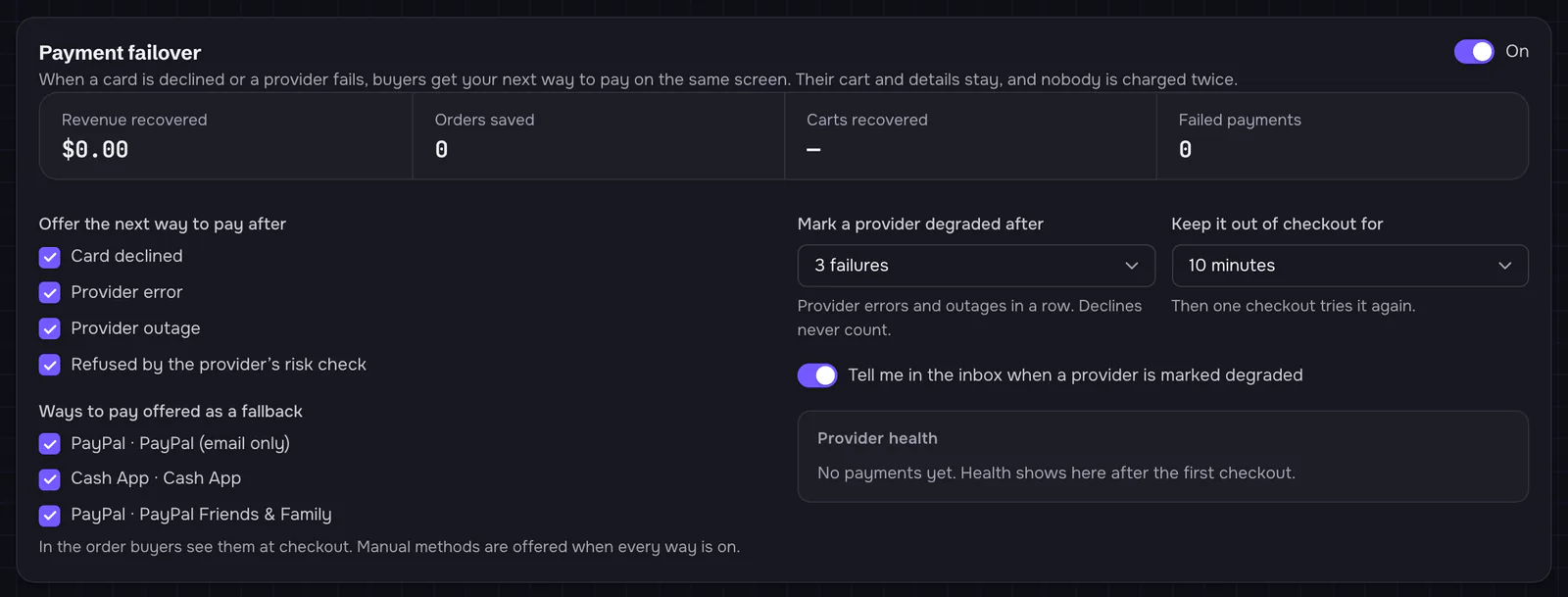
- The switch at the top turns failover on or off.
- Offer the next way to pay after: the failures that trigger it.
- Ways to pay offered as a fallback, in your checkout order. Fallbacks also follow your order limits.
- Mark a provider degraded after a number of provider errors or outages in a row (declines never count), and Keep it out of checkout for a while. Then one checkout tries it again.
- Provider health shows each provider as Taking payments, On trial or Degraded, sitting out. It works again puts a provider back at once.
Click Save failover after a change.
Refunds as store credit
Payments → Refunds lets you offer refunds as store credit with a bonus. Buyers get value right away and the money stays in your store.
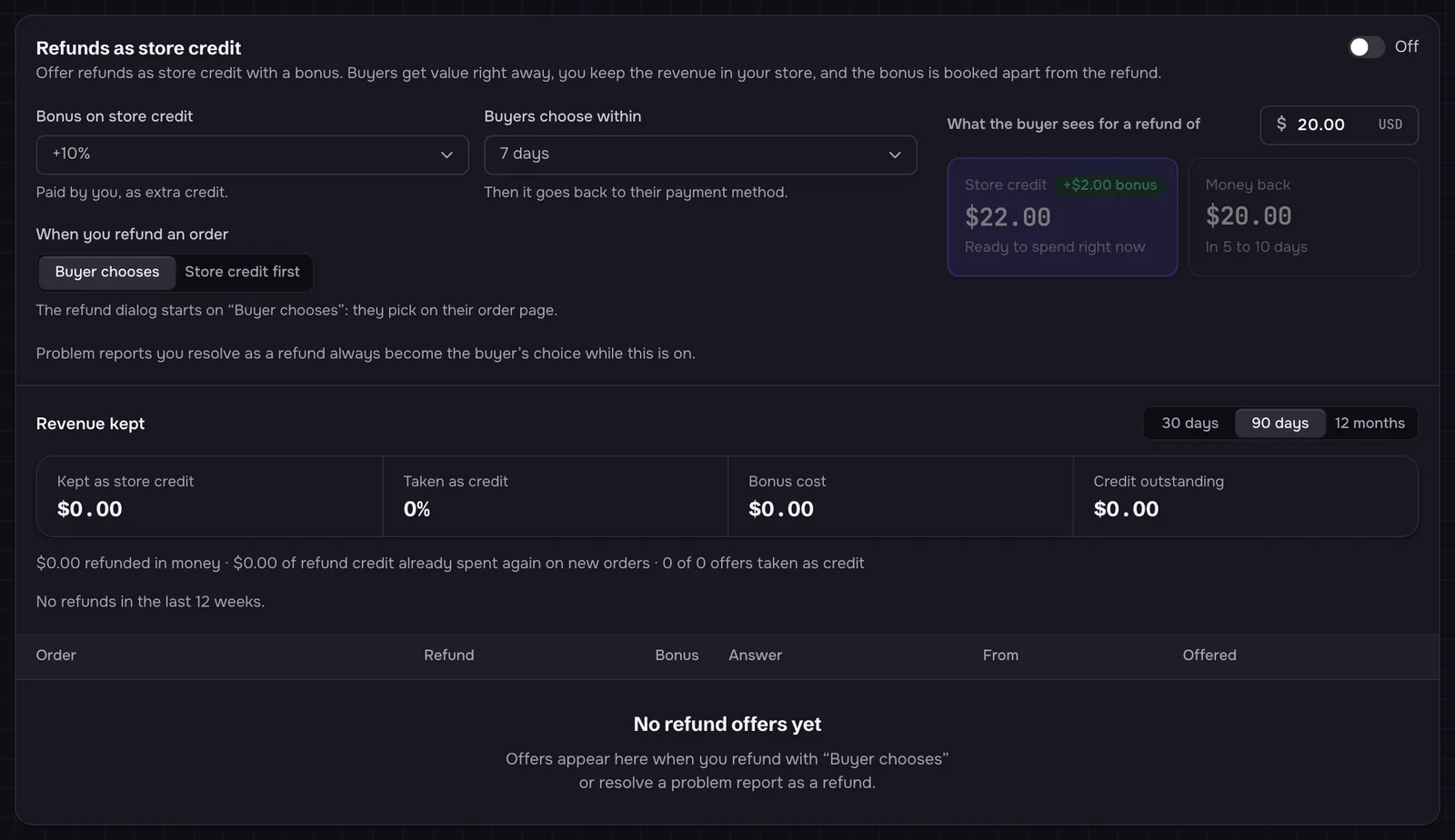
- The switch at the top turns it on.
- Bonus on store credit: extra credit, paid by you.
- Buyers choose within: after that, the refund goes back to their payment method.
- When you refund an order: Buyer chooses (they pick on their order page) or Store credit first (the refund dialog starts on credit with the bonus; you can still pick money back).
- What the buyer sees for a refund of an amount: the two choices, side by side.
- Revenue kept: what stayed as store credit, the share taken as credit, what the bonus cost, and credit not spent yet, for 30 days, 90 days or 12 months, with every offer listed below.
Click Save after a change. More on refunds: Buyer protection.
Manual payment methods
Bank transfer, cash on pickup or anything you confirm yourself. The card is at the bottom of Ways to pay. It works only on your own gateways: on a store set to ShopFast Pay it says Own gateway only.
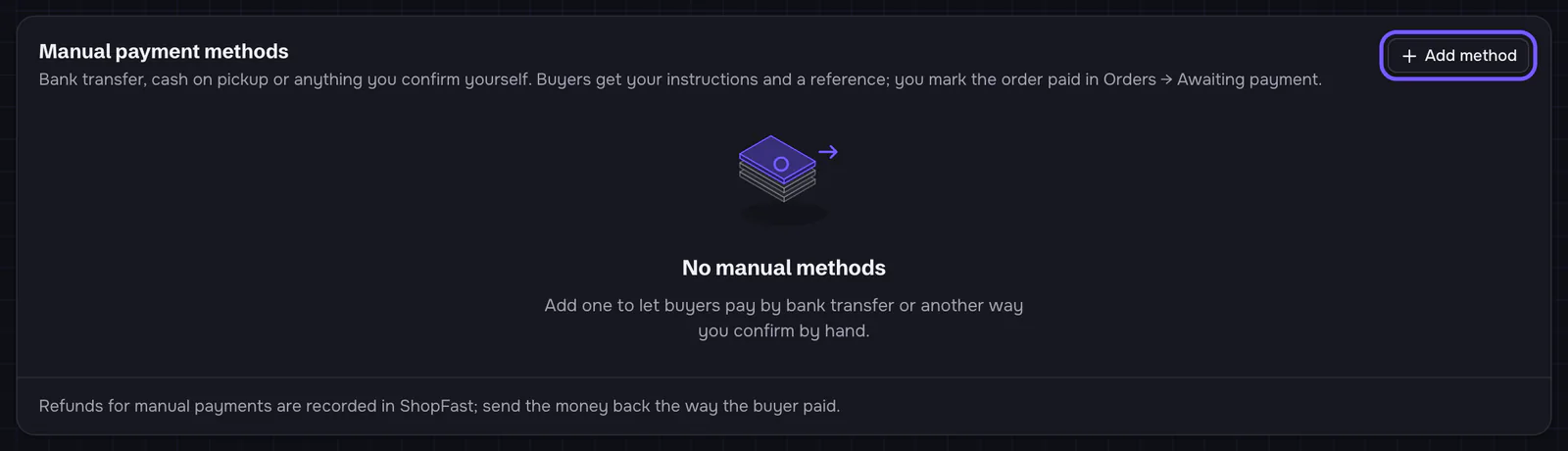
Click Add method:
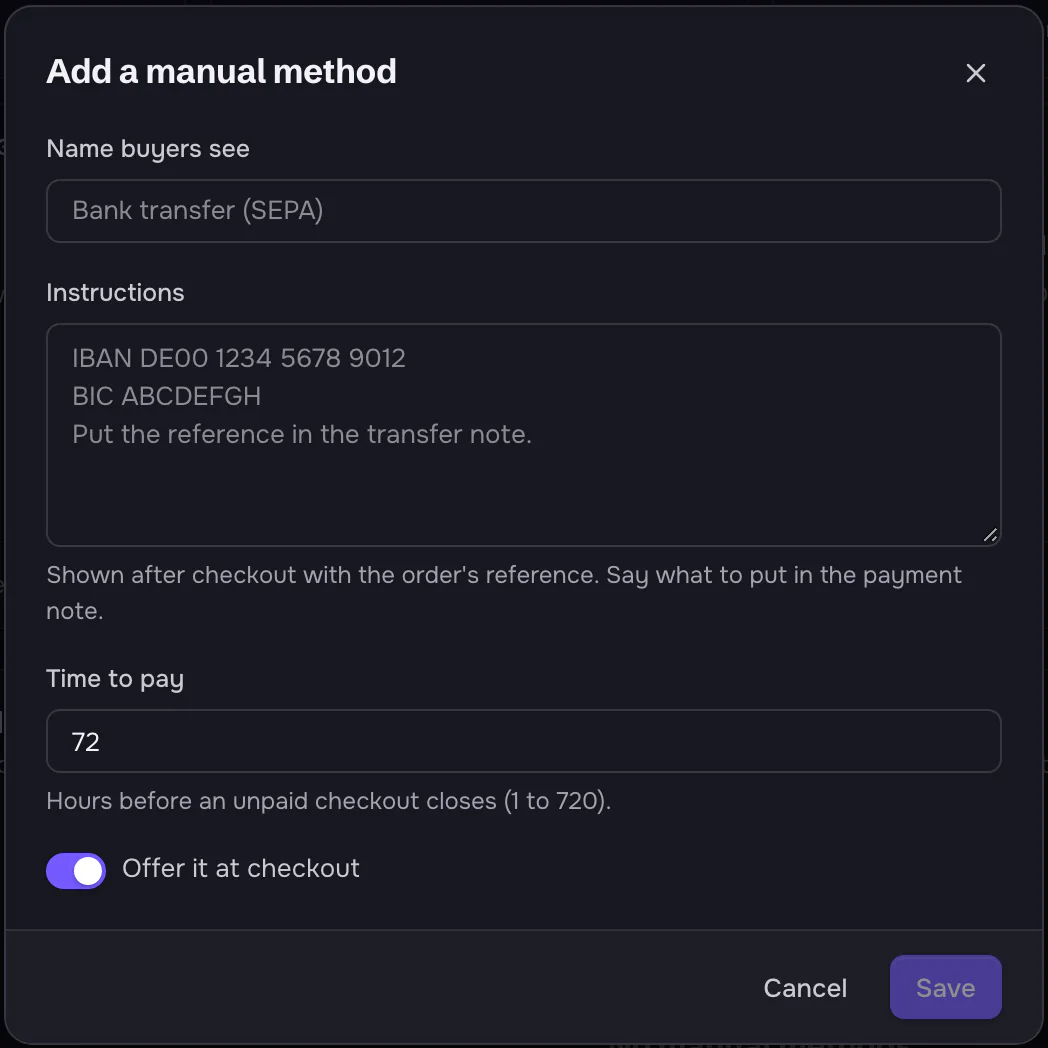
- Name buyers see at checkout.
- Instructions, shown after checkout with the order’s reference. Say what to put in the payment note.
- Time to pay: hours before an unpaid checkout closes (1 to 720).
- Offer it at checkout: off keeps the method but hides it.
When the money arrives, mark the order paid in Orders → Awaiting payment. Refunds for manual payments are recorded in ShopFast; you send the money back yourself.
Balance & payouts
On your own gateways
Buyers pay your gateway, so your gateway pays you, on its own schedule. ShopFast never holds a balance for you, and the page says so.
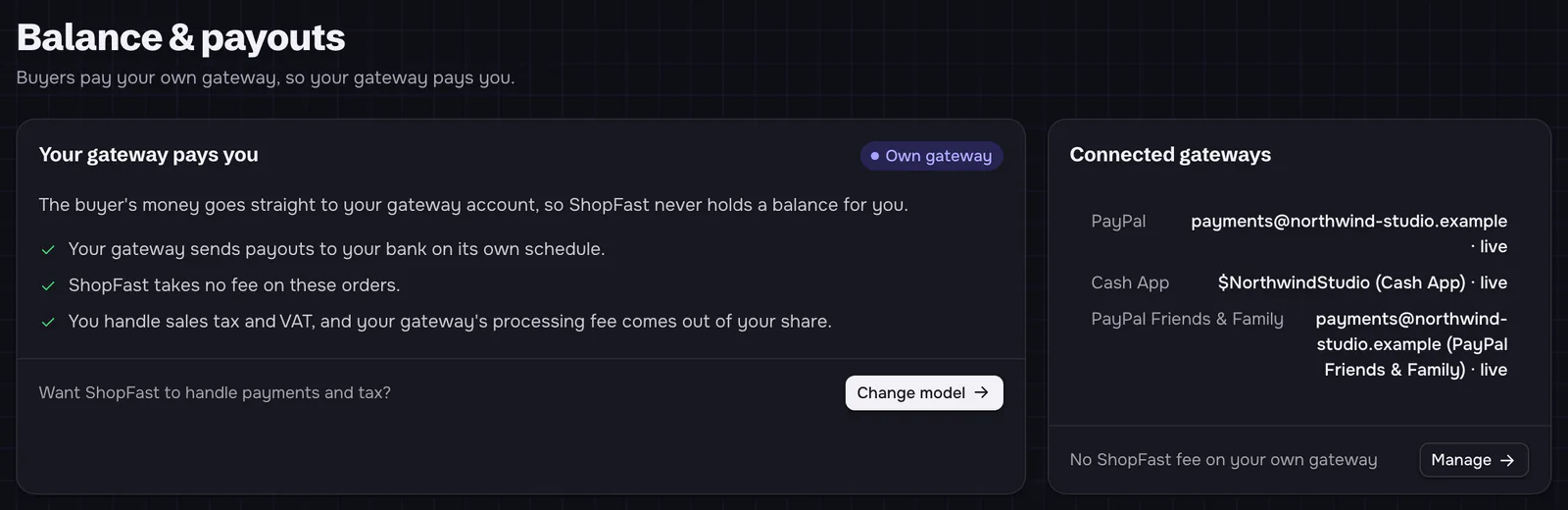
Connected gateways lists each one with its account. Manage and Change model go to Payments. If ShopFast still holds money from a time ShopFast Pay collected for you, a card above says ShopFast still holds money for you and pays it out with the next payout run.
With ShopFast Pay
While a store is set to ShopFast Pay, the page shows its balance and payouts. This is what it shows, number by number.
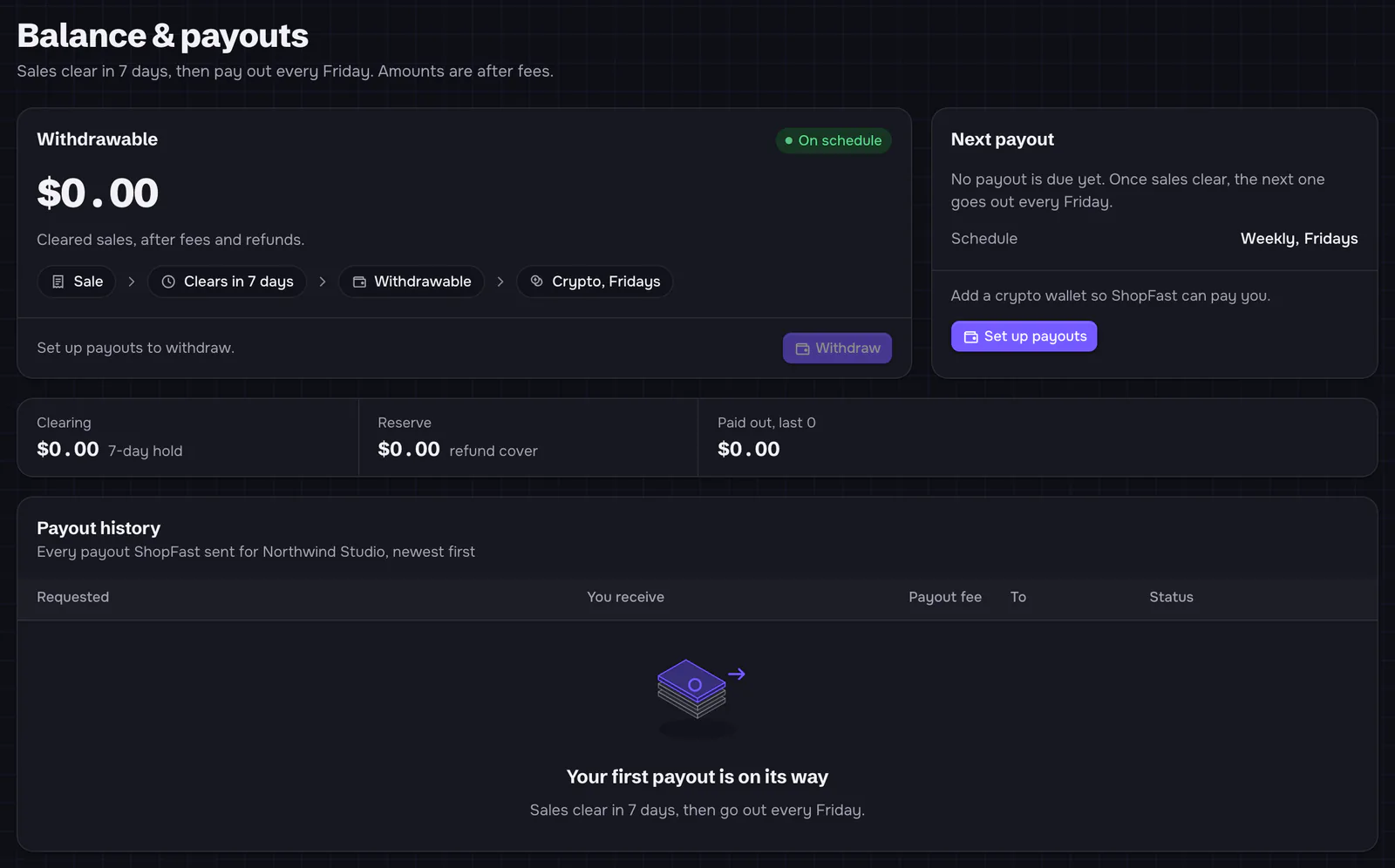
| What you see | What it means |
|---|---|
| Withdrawable | Cleared sales, after fees and refunds. What you can withdraw now. |
| The badge next to it | The payout runs: On schedule, Delayed, or Manual when payouts are not sent automatically. |
| Withdraw | Ask for a payout now. Its footer says why it is off: no payout wallet yet, below the amount you can withdraw from, or a payout already waiting. |
| Next payout | The amount and day of the next payout, or Payout requested while one is waiting for ShopFast’s review or being sent. Schedule is the payout schedule. |
| Clearing | Sales still in the hold period (the note gives the days, and any longer high-risk hold). |
| In payout | Money in a payout on its way to your wallet (shown only then). |
| Reserve | Held back against refunds, if your store has a reserve. |
| Paid out, last N | The total of your recent paid payouts. |
| Payout history | Every payout: when it was requested and by whom, You receive, Payout fee, To (coin, network and address) and Status, with View transaction on paid ones and the reason on ones not sent. |
Your payout wallet
ShopFast Pay pays out in crypto to a wallet you add with Set up payouts.
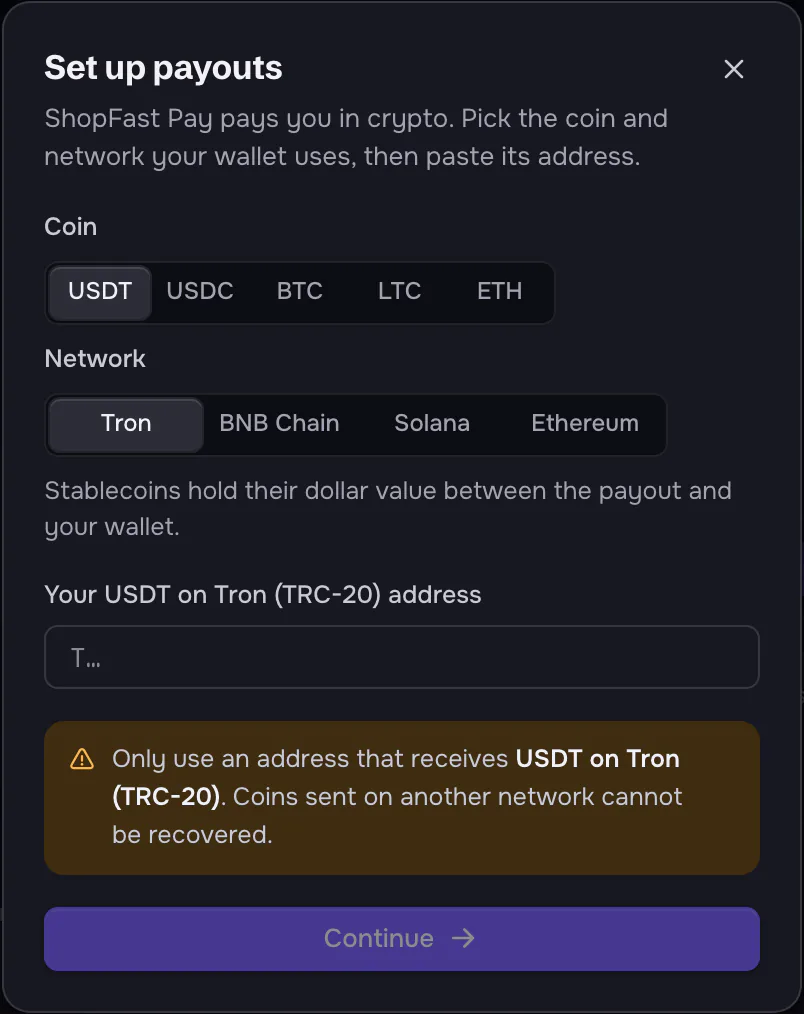
- Pick the Coin, then the Network for stablecoins.
- Paste the address from your wallet. Only use an address that receives that exact coin on that network.
- Click Continue, then confirm it is you: the code from your authenticator app, or a 6-digit code emailed to you that works for this address for 10 minutes.
More on holds, schedules, minimums and Withdraw: Payouts.
Financials
Financials turns your ledger into statements. Pick a period with the range button (Last month at first, or This month, Last 30 days, This year and more) and download any report with Download CSV: This report, or Full ledger for every entry in the period. Days are in your store’s time zone.
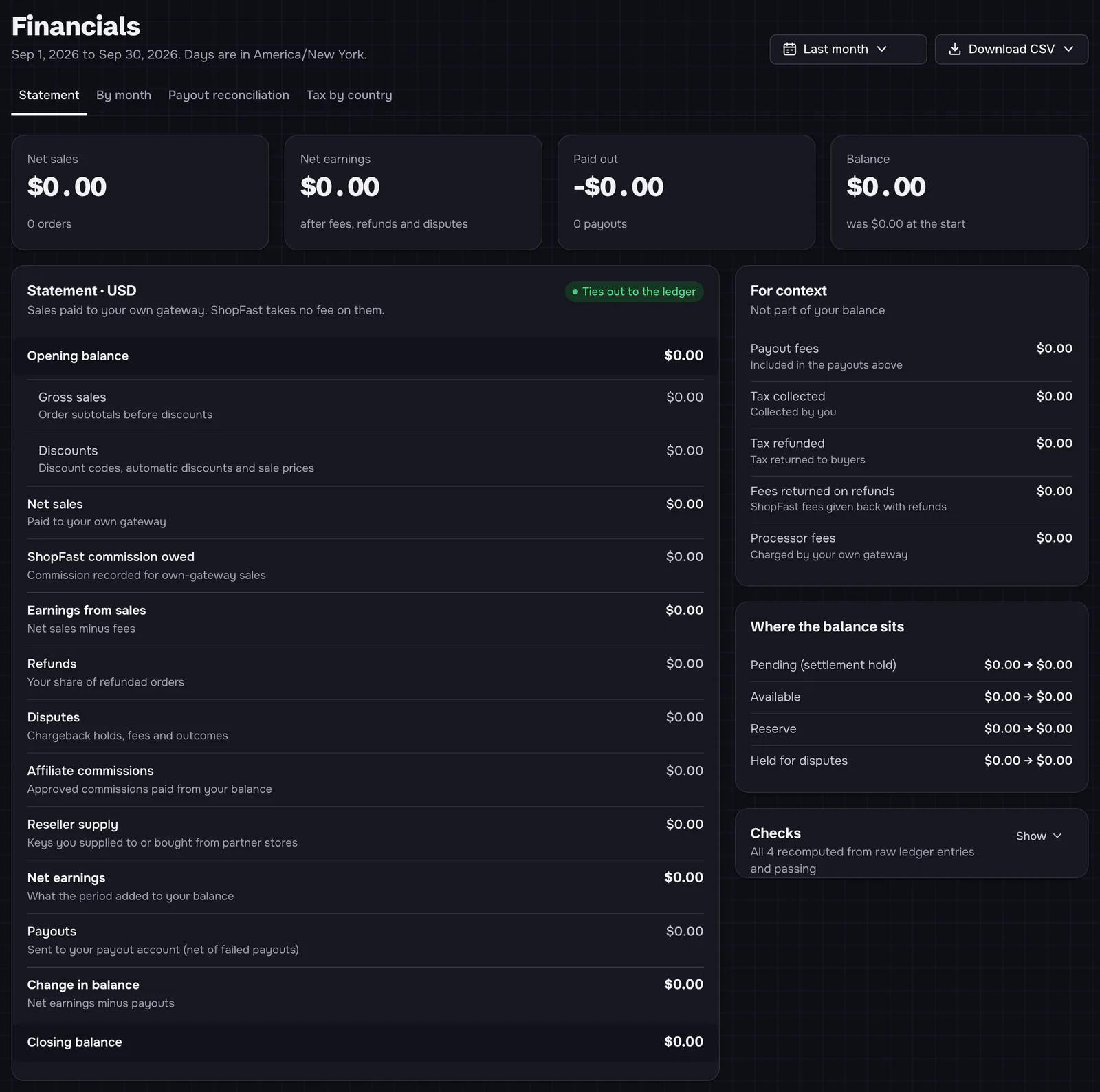
- Statement: the tiles Net sales (with the number of orders), Net earnings (after fees, refunds and disputes), Paid out (and how many payouts) and Balance (and what it was at the start). Below, the statement from Opening balance to Closing balance: each line says what it counts, such as Gross sales: Order subtotals before discounts. Ties out to the ledger and the Checks card show it was recomputed from your raw ledger entries and adds up. For context lists amounts that are not part of your balance, such as tax and processor fees, and Where the balance sits shows pending, available, reserve and held for disputes at the start and end.
- By month: the last 12 months, one statement row each.
- Payout reconciliation: every payout with the orders in it.
- Tax by country: sales by buyer country with the tax collected, and who remitted it.
Fees & billing
Fees & billing shows what ShopFast takes from a sale, priced the way checkout prices a real order, and what ShopFast charged each month.
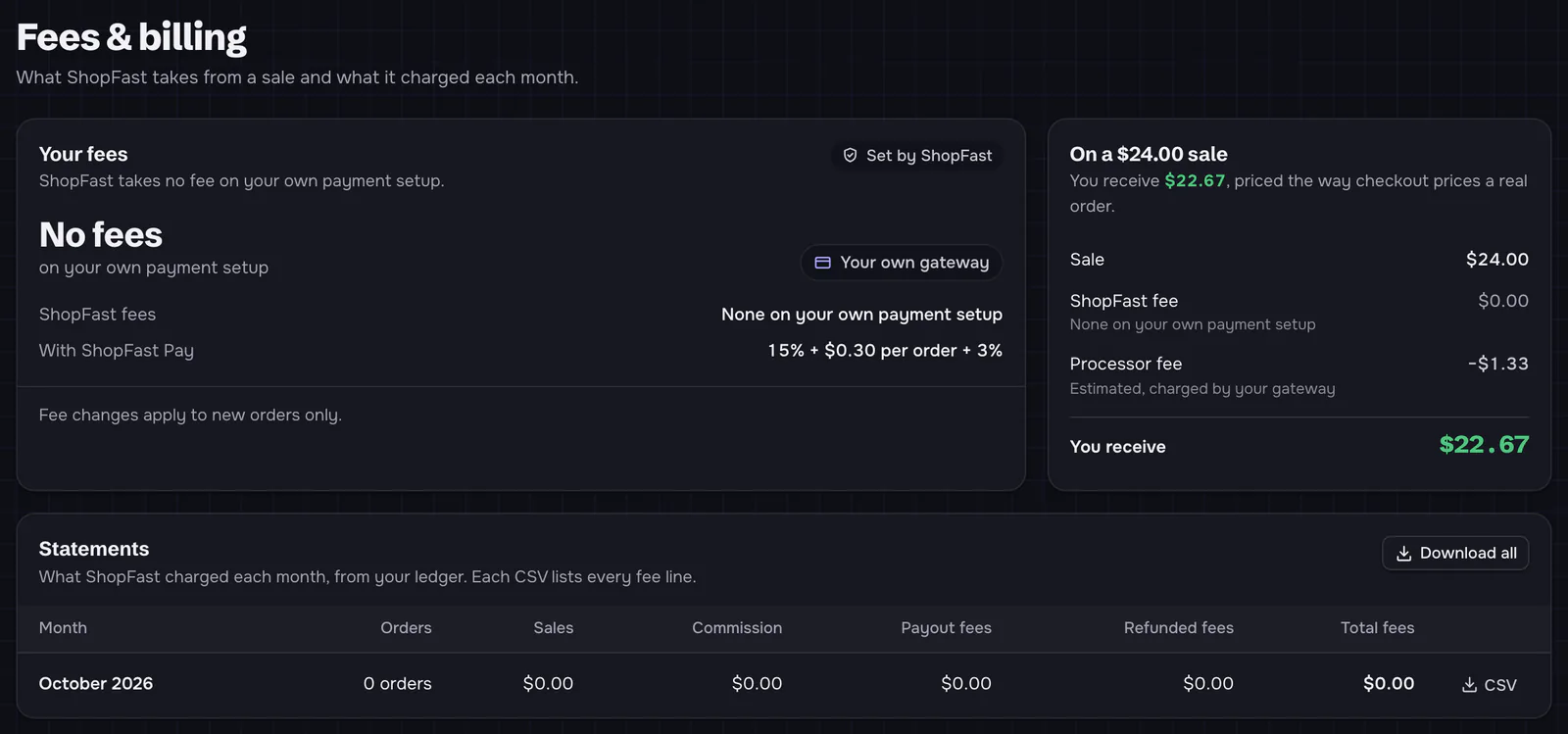
- Your fees: the fees on your store, with Set by ShopFast (and Custom rate when ShopFast set one for your store). On your own gateways it says No fees and shows what ShopFast Pay would cost, for comparison. Fee changes apply to new orders only.
- On a $24.00 sale (in your currency): the sale, ShopFast’s fee, the processor fee and You receive. On your own gateways the processor fee is an estimate of what your gateway charges.
- Statements: per month, the orders, sales, commission, payout fees, refunded fees and total fees, each with a CSV of every fee line, or Download all.
While a store is set to ShopFast Pay, the same page lists ShopFast Pay’s rates and payout terms.
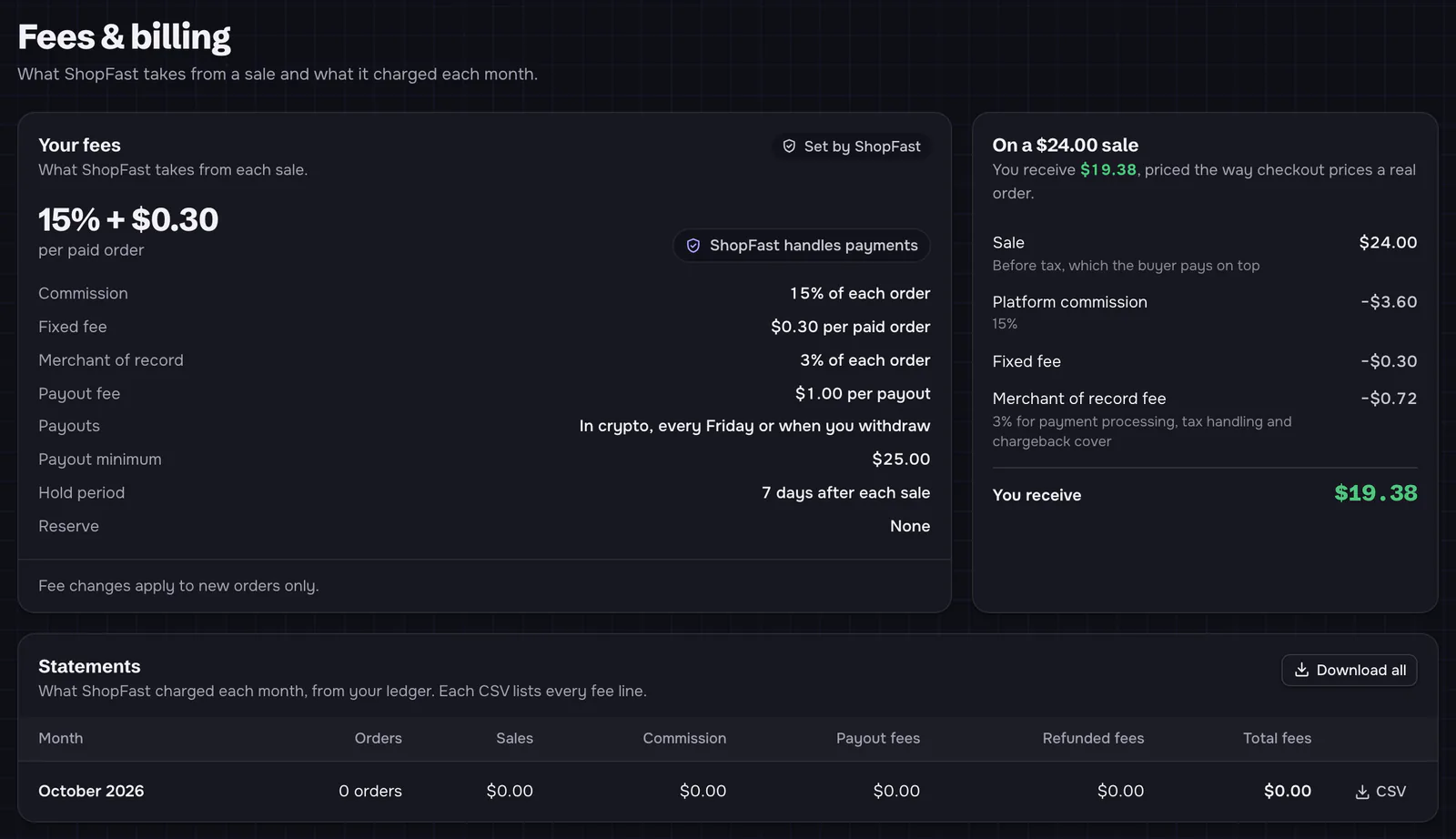
| Line | What it is |
|---|---|
| Commission | A share of each order after discounts. |
| Fixed fee | A flat amount per paid order. |
| Merchant of record | A share of each order for payment processing, tax handling and chargeback cover. |
| Payout fee | A flat amount per payout, taken from the payout. |
| Payouts, Payout minimum, Hold period, Reserve | When ShopFast Pay money is paid out, the smallest payout, how long each sale is held, and any share held back against refunds. |
More: Payment models and ShopFast Pay.