Get paid: gateway by gateway
What each gateway needs, how its payments reach ShopFast, which currencies it takes, and the steps and warnings that differ from one gateway to the next.
Connecting works the same way for every gateway: pick it in the gallery, follow the steps in its panel, paste what they tell you to copy and click Connect. That is shown step by step in the complete guide. This page covers what differs.
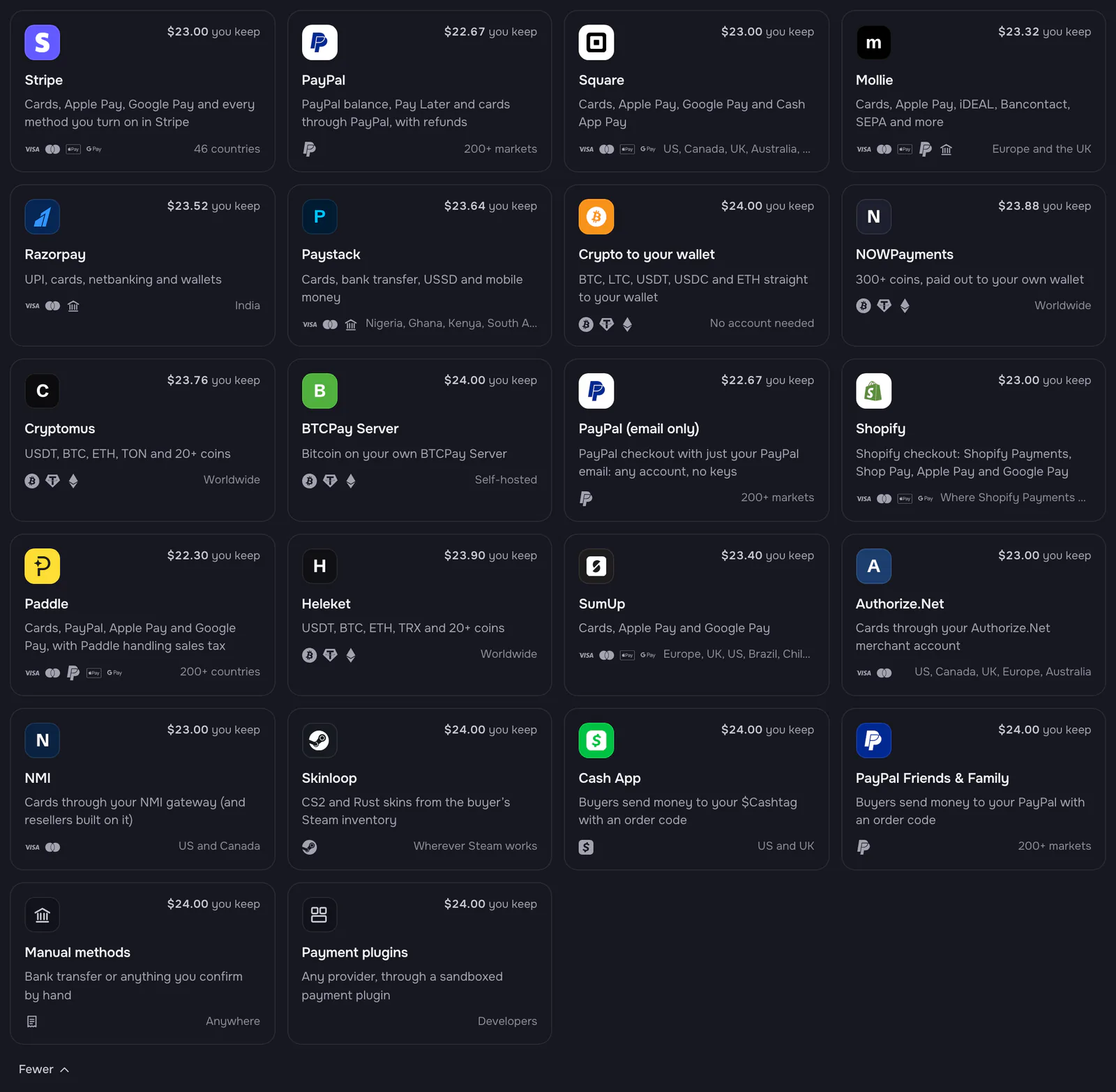
At a glance
“Payment notifications” is how the provider tells ShopFast a payment was made. Where it says you add a webhook, the panel gives you the address to copy. “Store currencies” are the store currencies the gateway takes: checkout skips it for the others.
| Gateway | What you paste | Payment notifications | Store currencies | Refunds from ShopFast |
|---|---|---|---|---|
| Stripe | Secret or restricted key; optionally the publishable key and a payment method configuration ID | ShopFast adds its webhook | Any | Yes |
| PayPal | Client ID and Secret of a Live app | ShopFast adds its webhook | USD, EUR, GBP, CAD, AUD, JPY | Yes |
| PayPal (email only) | Your PayPal email | Each payment names ShopFast’s address | USD, EUR, GBP, CAD, AUD, JPY | No, in PayPal |
| Square | Production access token; optionally the application ID | ShopFast adds its webhook | Your main location’s currency: USD, CAD, GBP, AUD, JPY or EUR | Yes |
| Mollie | Live API key | Each payment names ShopFast’s address | EUR, GBP, USD, CAD, AUD, JPY | Yes |
| Razorpay | Key ID, Key Secret and a webhook secret | You add ShopFast’s webhook (payment_link.paid and order.paid) |
INR, USD, EUR, GBP, CAD, AUD, JPY | Yes |
| Paystack | Live secret key | You paste ShopFast’s address as the Live Webhook URL | USD | Yes |
| Shopify | Shop address, Client ID and Secret, then you approve the app | ShopFast adds its webhooks when you approve | Your Shopify store’s currency | Yes |
| Paddle | API key; optionally a client-side token | ShopFast adds its notification destination | USD, EUR, GBP, CAD, AUD, INR, JPY | Yes, once Paddle approves |
| SumUp | Secret API key and merchant code | Each payment names ShopFast’s address | EUR, GBP, USD | Yes |
| Authorize.Net | API Login ID, Transaction Key and Signature Key | ShopFast adds its webhook | USD, CAD, GBP, EUR, AUD | Yes |
| NMI | Private API key, public tokenization key, webhook signing key | You add ShopFast’s webhook | USD, CAD | Yes |
| Crypto to your wallet | An xpub or a wallet address | ShopFast watches the chain | — | No, from your wallet |
| NOWPayments | API key and IPN secret key | Each invoice names ShopFast’s address | USD, EUR, GBP, CAD, AUD, INR, JPY | No, in NOWPayments |
| Cryptomus | Merchant ID and Payment API key | Each invoice names ShopFast’s address | USD, EUR, GBP, CAD, AUD, INR, JPY | No, in Cryptomus |
| Heleket | Merchant ID and API key for payments | Each invoice names ShopFast’s address | USD, EUR, GBP, CAD, AUD, INR, JPY | No, in Heleket |
| BTCPay Server | Server address, store ID and API key | ShopFast adds its webhook to your server | — | Yes |
| Skinloop | API key, webhook signing secret, optionally the games | You add ShopFast’s webhook | USD | No, in Skinloop |
| Cash App | Your $Cashtag and the Gmail that gets your receipts | Gmail forwards Cash App’s receipts | USD, GBP | No, in Cash App |
| PayPal Friends & Family | Your PayPal primary email | You point PayPal’s IPN at ShopFast’s address | USD, EUR, GBP, CAD, AUD, JPY | No, in PayPal |
When a gateway does not take your store’s currency, its tile says so and the panel warns you before you connect (currency not supported). How ShopFast checks each payment, whatever the gateway: How every payment is checked.
Where buyers pay, gateway by gateway
Most gateways take the payment in a window over your store’s checkout, with the gateway’s own form, so buyers never leave your store. The rest send buyers to the gateway’s own page, because they have no form that runs on another site. Where buyers pay explains the window.
| Gateway | In the window over your checkout | When it goes to the gateway’s page instead |
|---|---|---|
| Stripe | Stripe’s embedded checkout | No publishable key, or Stripe’s checkout cannot load |
| PayPal | PayPal’s buttons (approval in PayPal’s popup) | PayPal’s buttons cannot load |
| Square | Square’s card fields, Google Pay, Cash App Pay, Apple Pay | No application ID, or Square’s fields cannot load |
| Razorpay | Razorpay’s checkout window | Razorpay’s checkout cannot load (its payment link) |
| Paystack | Paystack’s popup | The popup cannot load (Paystack Checkout) |
| Paddle | Paddle’s checkout | No client-side token, or Paddle refuses your store’s address (your default payment link) |
| SumUp | SumUp’s card form | The form cannot load (SumUp’s hosted page) |
| Authorize.Net | Authorize.Net’s payment form | The form cannot load (its page, for the same payment) |
| NMI, Cash App, PayPal Friends & Family | Always | Never |
| Mollie, Shopify, PayPal (email only), Skinloop, NOWPayments, Cryptomus, Heleket, BTCPay Server | Never | Always |
When the window cannot show the gateway’s form, it says so and offers the gateway’s page with one click.
Stripe
Buyers pay with cards, Apple Pay, Google Pay and every method you turn on in Stripe: Link, Klarna, WeChat Pay, Amazon Pay, iDEAL, Alipay and the others, each where it suits the buyer’s currency and device. With your publishable key, they pay in Stripe’s embedded checkout in a window over your store; without it, on checkout.stripe.com. The panel’s steps are in the complete guide.
- Restricted key. In Developers → API keys, click Create restricted key and give it Write access to Checkout Sessions, Refunds and Webhook Endpoints, and to Payment Method Domains (ShopFast registers your store’s address for Apple Pay with it). Your secret key works too, but a restricted key can do only what ShopFast needs.
- Publishable key (optional, recommended). Copy the publishable key (
pk_live_…) from the same API keys page. It must be of the same mode as the secret key: a test publishable key with a live secret key is refused under the field. Methods that need the buyer’s bank or wallet app (iDEAL, Klarna, Alipay…) open it and come back to your store. - Payment method configuration ID (optional). To choose exactly which methods buyers see, create a configuration in
Settings → Payments → Payment methods in Stripe and paste its ID, which starts with
pmc_. Without one, buyers see every method you turned on. - ShopFast adds its webhook to your Stripe account. Disconnecting removes it.
PayPal: with keys, or with just your email
There are two ways to take PayPal checkout payments. Pick one.
| PayPal | PayPal (email only) | |
|---|---|---|
| You need | A PayPal Business account and a Live app in developer.paypal.com | The email of any PayPal account |
| You paste | Client ID and Secret | Your PayPal email |
| Buyers pay with | PayPal balance, Pay Later and cards through PayPal | PayPal checkout |
| Refunds | From ShopFast | In your PayPal account |
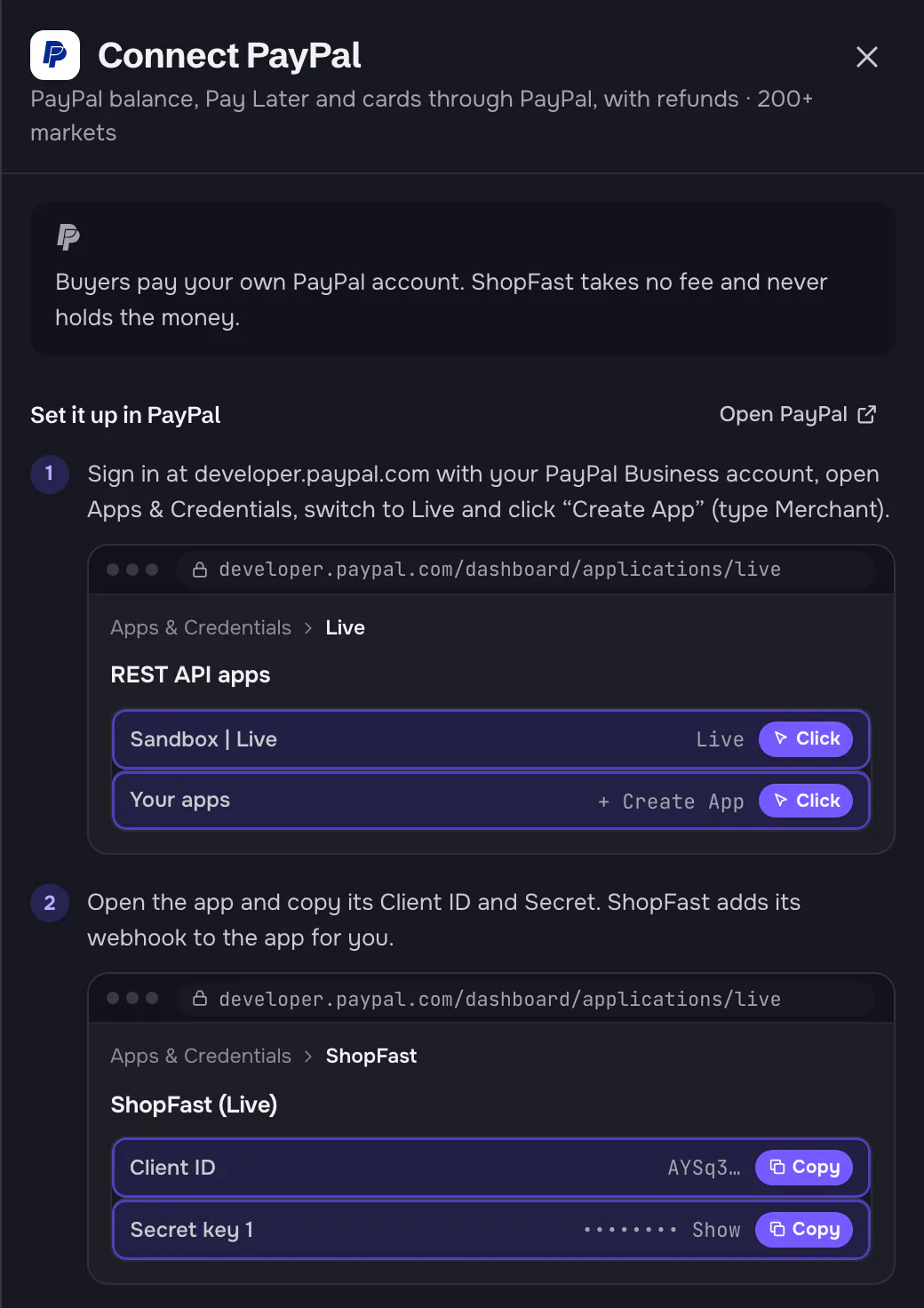
PayPal (with keys): sign in at developer.paypal.com, open Apps & Credentials, switch to Live and click Create App (type Merchant). Copy the app’s Client ID and Secret key 1. ShopFast adds its webhook to the app.
PayPal (email only): paste the email of the PayPal account that should receive the money (Settings → Account → Email addresses in PayPal). There is nothing to set up in PayPal: each payment tells PayPal where to send its notification, and ShopFast checks each one with PayPal. If you ever turned Instant payment notifications off, turn them back on.
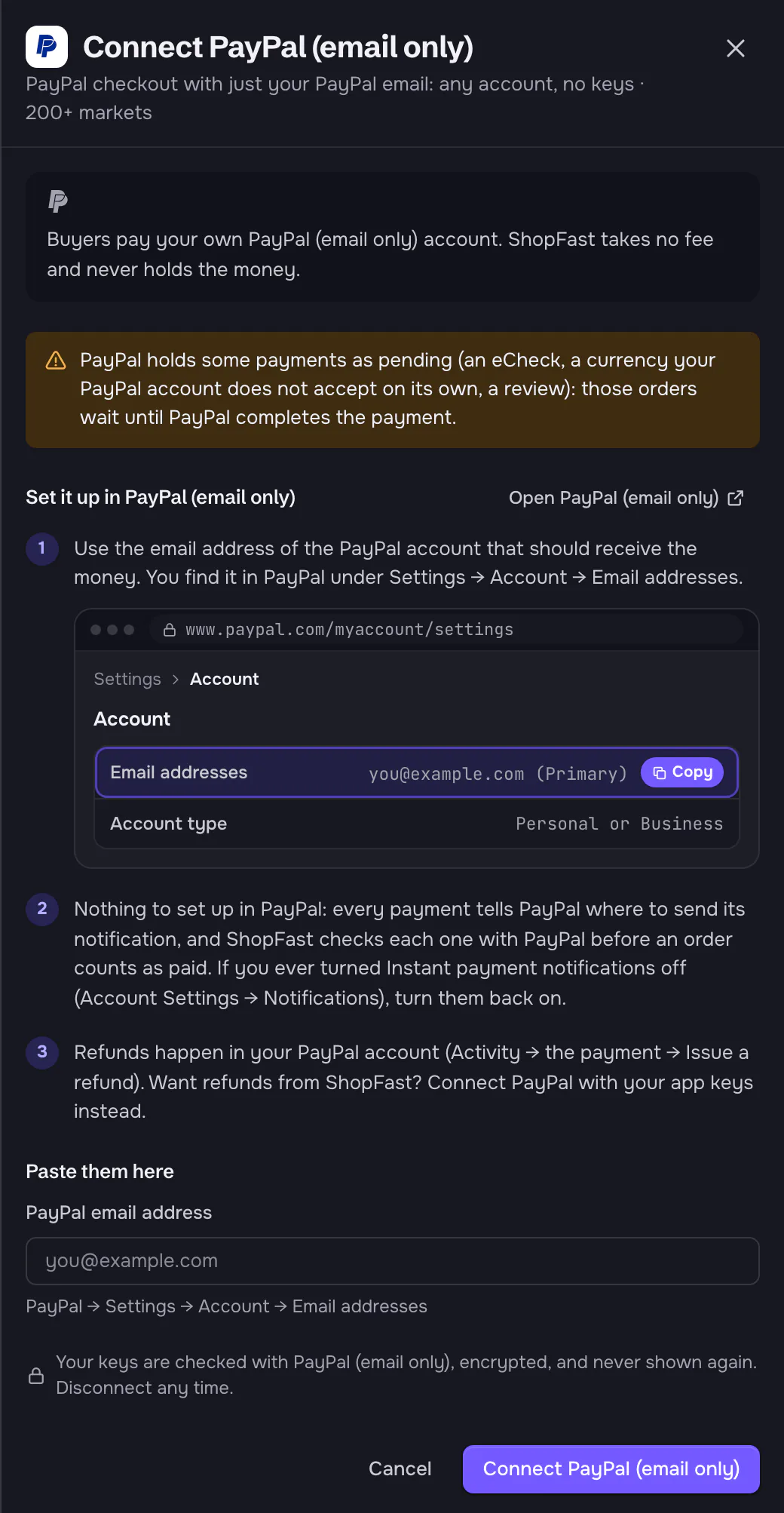
The panel warns that PayPal holds some payments as pending (an eCheck, a currency your PayPal account does not accept on its own, a review): those orders wait until PayPal completes the payment. Refunds happen in PayPal (Activity → the payment → Issue a refund).
Square, Mollie, Razorpay and Paystack
- Square: in developer.squareup.com, open your application (or create one), switch to Production, open Credentials and copy the Production access token. ShopFast uses your main location and adds its webhook. The location’s currency must be your store’s. Buyers pay in Square’s card fields (and Google Pay, Cash App Pay, and Apple Pay where your domain is registered with Square) in a window over your store; ShopFast reads the application ID from the token. Paste the Production application ID from the same page only if ShopFast asks for it.
- Mollie: in Developers → API keys, copy the Live API key (it starts with
live_). Each payment tells Mollie where to report back, so there is nothing else to set up. - Razorpay: in Live mode, open Account & Settings → API keys, click Generate Key and copy the Key ID and
the Key Secret (shown once). Then Account & Settings → Webhooks → Add New Webhook: paste ShopFast’s address, type
a secret of your own and tick
payment_link.paidandorder.paid. Paste that secret in Webhook secret too. Buyers pay in Razorpay’s checkout window over your store; the payment link is their way out if it cannot open. - Paystack: in Settings → API Keys & Webhooks, copy the Live Secret Key, paste ShopFast’s address into Live Webhook URL and click Save changes. Paystack takes only USD of ShopFast’s currencies. Buyers pay in Paystack’s popup over your store; it resumes the payment ShopFast started, so no public key is needed.
Paddle
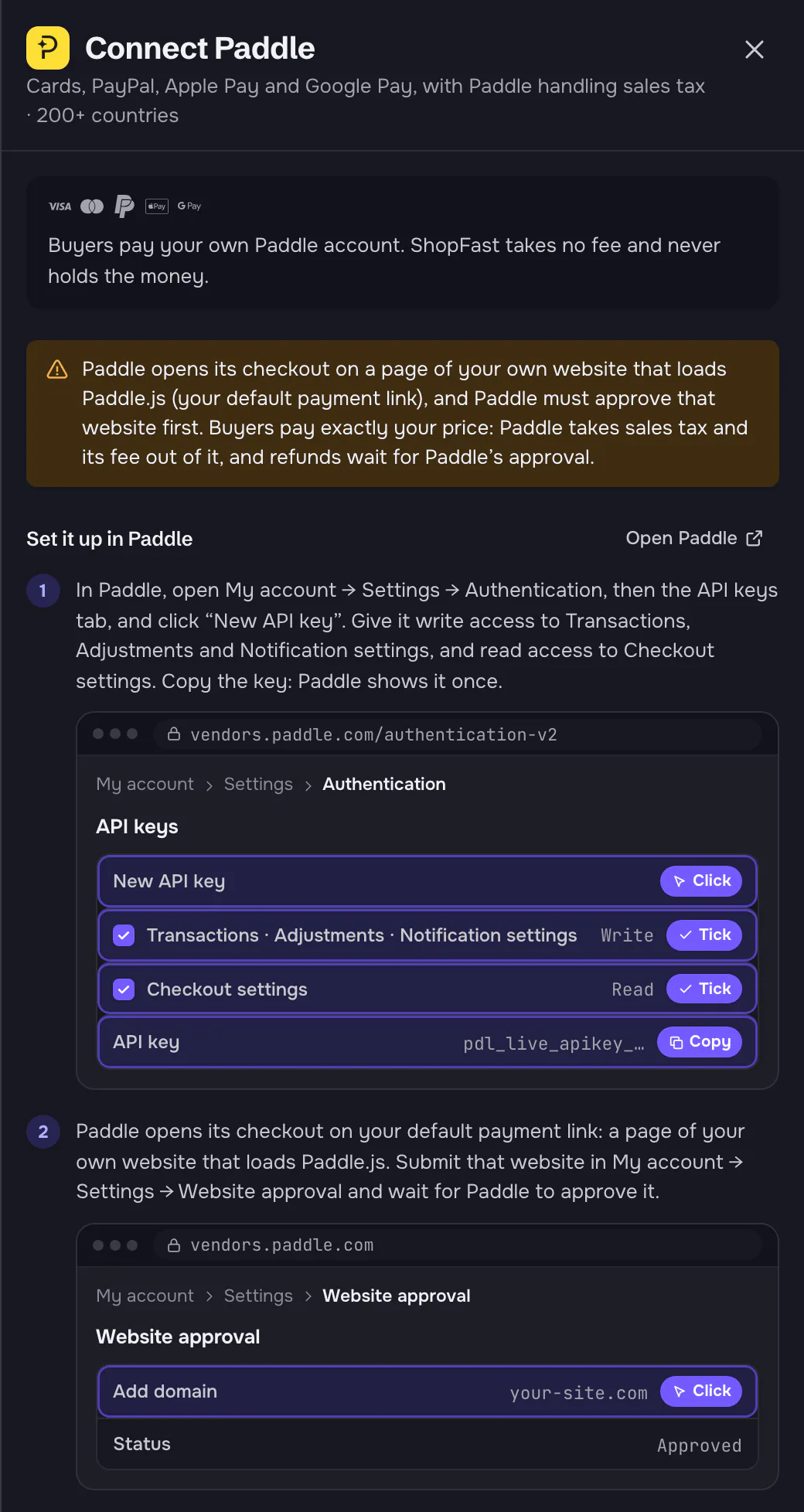
Paddle is a merchant of record itself: it handles sales tax, and buyers pay with cards, PayPal, Apple Pay and Google Pay. Its setup has one step the others do not: Paddle must approve your website first.
-
In My account → Settings → Authentication → API keys, click New API key. Give it write access to Transactions, Adjustments and Notification settings, and read access to Checkout settings. Copy the key (shown once).
-
Submit your website in My account → Settings → Website approval and wait for Paddle to approve it.
-
In Checkout → Checkout configuration, set Default payment link to a page of that website that loads Paddle.js. ShopFast checks it when you connect and adds its notification destination.
-
Optional: to let buyers pay in a window over your store, create a client-side token in Developer tools → Authentication → Client-side tokens, paste it in Client-side token, and add your store’s address to Website approval. Paddle opens its checkout only on addresses it approved: until it approves your store’s, buyers go to your default payment link, as without a token.
Buyers pay exactly your price: Paddle takes sales tax and its fee out of it. Refunds wait for Paddle’s approval.
SumUp, Authorize.Net and NMI
- SumUp: in Settings → For developers → Toolkit → API keys, click Create and copy the secret key (shown once, not the public key). Your merchant code starts with M. ShopFast asks SumUp whether the account is a sandbox and refuses one while checkout takes real money. EUR, GBP and USD only. Buyers type their card into SumUp’s own card form in a window over your store.
- Authorize.Net: in the Merchant Interface, open Account → Settings → Security Settings → General Security Settings → API Credentials & Keys. Copy the API Login ID, then make a New Transaction Key and a New Signature Key. The panel warns: Your Authorize.Net account must take your store’s currency and only that one, and must not be in Test Mode. Buyers pay in Authorize.Net’s own payment form, shown in a window over your store.
- NMI: in Settings → Security Keys, add a private key with API permission and a public key with Tokenization
permission. In Settings → Webhooks, add ShopFast’s address, tick
transaction.sale.success, save and copy the signing key. The panel warns: Your NMI account must not be in test mode: ShopFast refuses it, since test mode approves cards without charging them. Buyers type their card into NMI’s own card fields on ShopFast’s pay page.
Shopify
Buyers pay on your Shopify store’s checkout: Shopify Payments, Shop Pay, Apple Pay and Google Pay. You need an active Shopify plan, and your Shopify store must sell in the same currency as your ShopFast store. Connecting has two parts: an app you make in Shopify’s Dev Dashboard, then your approval on Shopify.
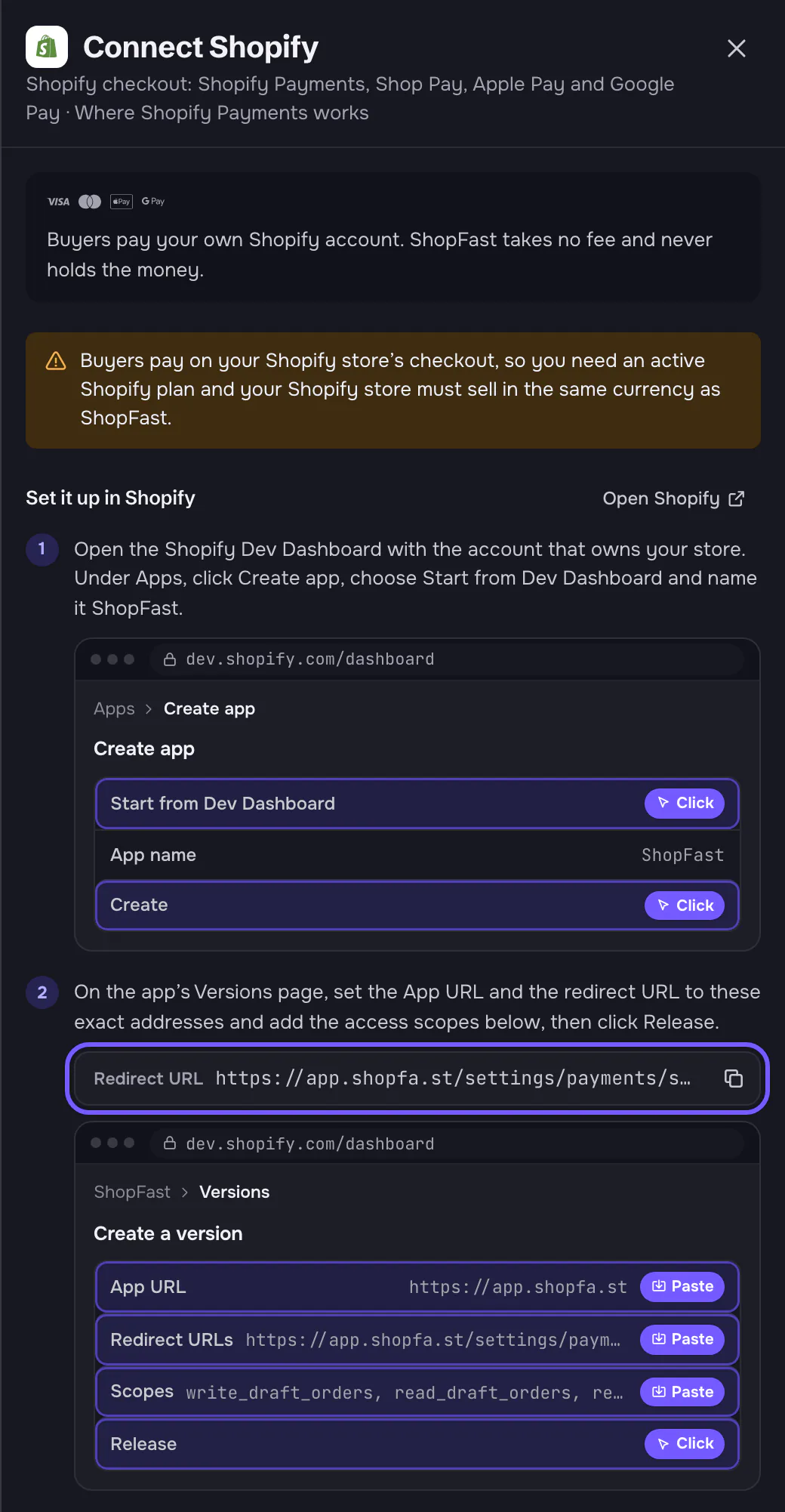
- In Shopify’s Dev Dashboard, with the account that owns your store, click Create app, choose Start from Dev Dashboard and name it ShopFast.
- On the app’s Versions page, set the App URL and the Redirect URLs to the exact addresses in the panel,
add the scopes
write_draft_orders, read_draft_orders, read_orders, write_ordersand click Release. - In the app’s Settings, copy the Client ID and Secret under Credentials.
- Paste them with your store’s
your-store.myshopify.comaddress (not your own domain) and click Connect Shopify.
The panel then asks for one last step. Click Approve on Shopify: Shopify asks you to approve the app, then brings you back to ShopFast.
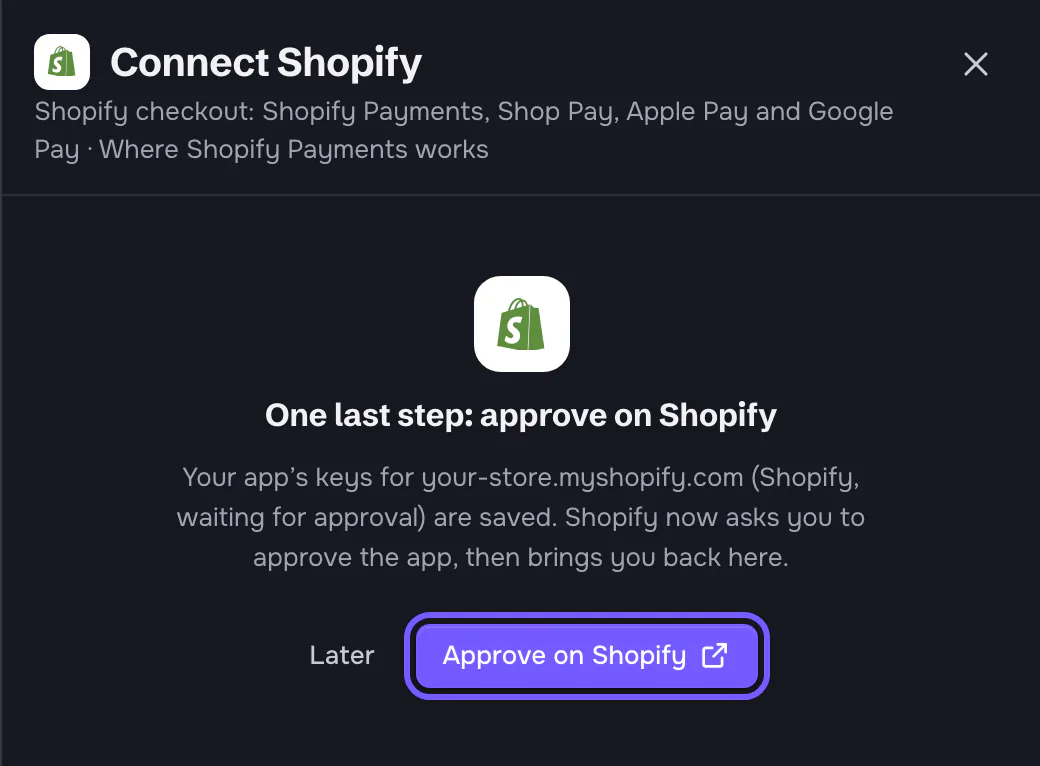
If you click Later, the row waits with Finish setup and its own Approve on Shopify button.

Back from Shopify, a page checks Shopify’s approval and adds ShopFast’s webhooks to your app. It then says the store is connected, with Back to payments. Buyers pay through Shopify once your store uses its own gateways. If Shopify’s approval did not come back, see Shopify not approved yet.
Crypto to your own wallet
Buyers pay from any wallet straight to yours in BTC, LTC, USDC, USDT or ETH. ShopFast never holds keys or coins and takes no fee. The Crypto to your wallet tile opens its own page.
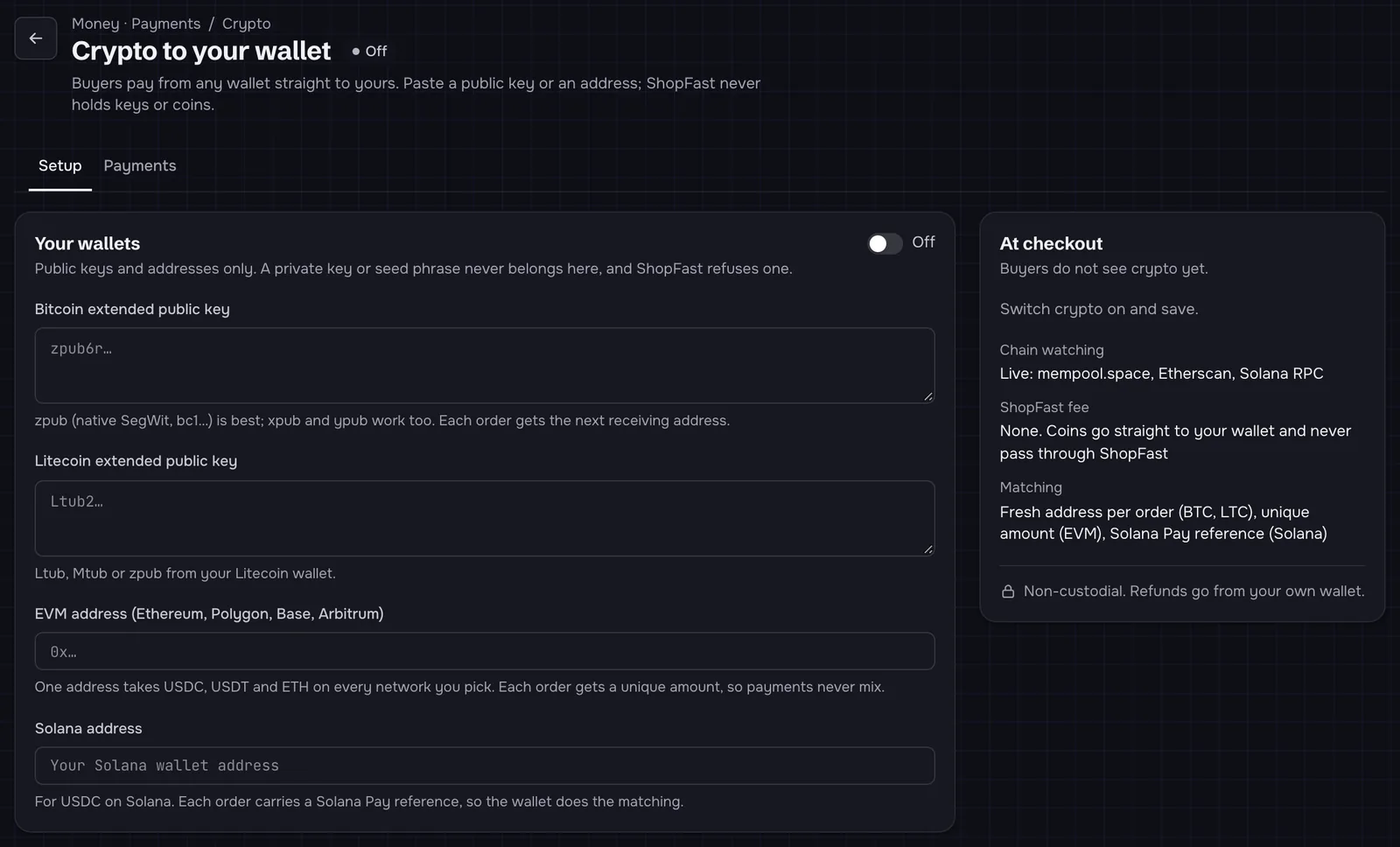
- Under Your wallets, paste public keys and addresses only: a Bitcoin or Litecoin extended public key (each order gets the next receiving address), an EVM address (one address for USDC, USDT and ETH on every network you pick) or a Solana address (USDC on Solana). A private key or seed phrase never belongs here, and ShopFast refuses one.
- Under Coins buyers can pick, choose the coins and networks. Coins without a wallet stay off.
- Under Price lock and edge cases, set how long a quote holds, how short a payment may be, and what happens to overpayments and late payments. See order limits.
- Turn the switch on (On at checkout) and click Save changes in the bar at the bottom.
Crypto to your wallet works on your own gateways: on a store set to ShopFast Pay, the page says Switch to your own gateways to take crypto to your wallet. The Payments tab lists every crypto payment. Underpaid and late payments wait there for you: Accept as paid, or I sent it back once you returned the coins.
NOWPayments, Cryptomus, Heleket and BTCPay Server
- NOWPayments: in Settings → Payments → API keys, click Add new key. On the same page, under Instant payment notifications, click Generate and copy the IPN secret key (shown once).
- Cryptomus: in Business → your merchant → Settings → API integration, copy the Merchant ID and generate a Payment API key (not the payout key).
- Heleket: create a merchant in Business → Merchants, click Leave a request in its Settings with your store’s address (the panel gives it to copy), and wait for Heleket’s moderation. The panel warns that Heleket must approve your merchant (a website and domain check) before its API key for payments works. Then copy the Merchant ID and the API key for payments.
- BTCPay Server: a short wizard instead of a key panel. You need a BTCPay Server you control, with a store for the coins you accept.
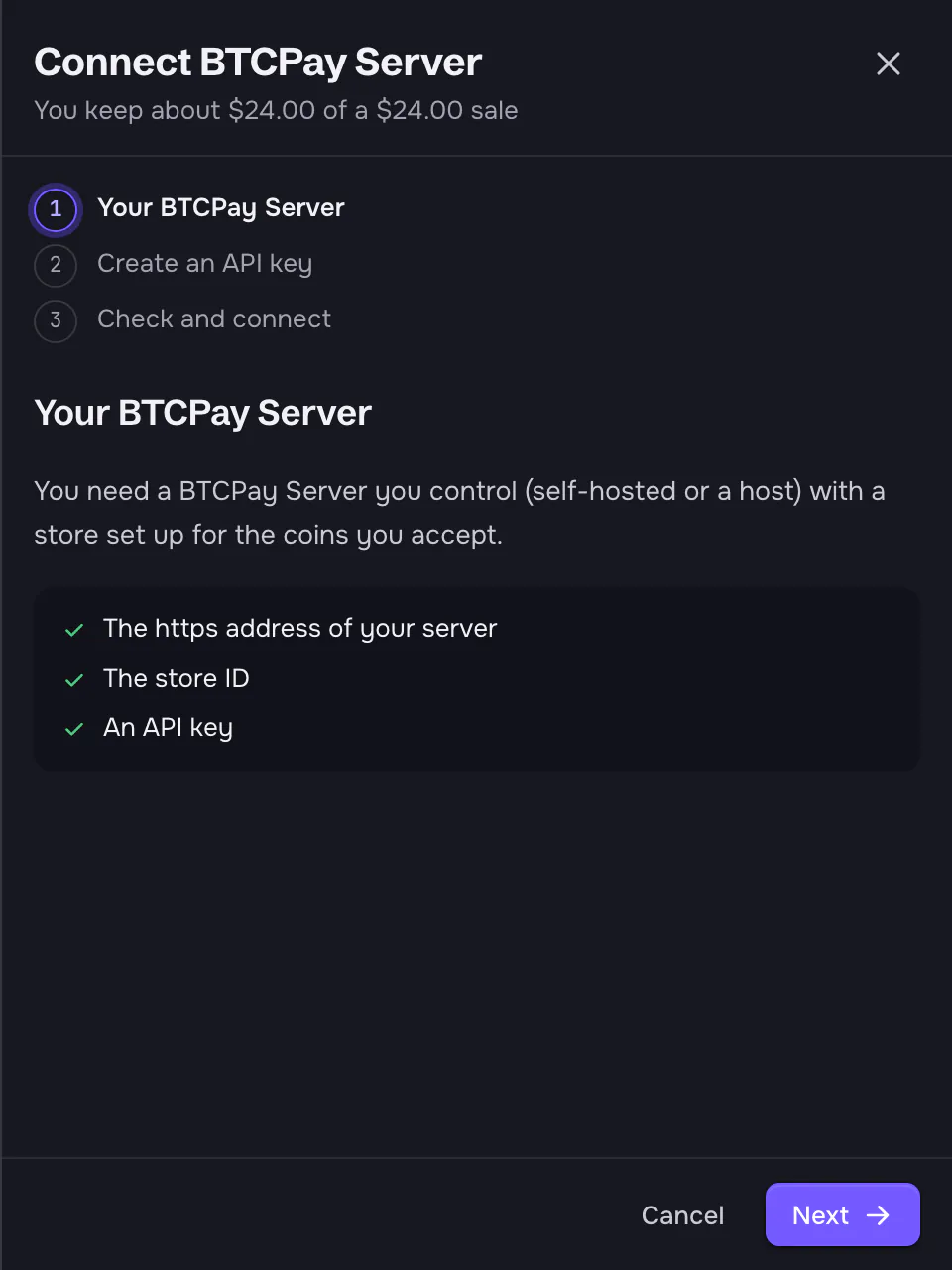
For BTCPay, create the API key in Account → API keys → Generate key with only these permissions: view invoices, create invoices, modify webhooks and create pull payments (for refunds). The last step, Enter server details, checks the key against your server and registers ShopFast’s webhook there.
Crypto payments cannot be pulled back by ShopFast: refund them from the processor or your wallet.
Skinloop
Buyers pay with CS2 and Rust skins from their Steam inventory, on Skinloop’s checkout, priced in US dollars.
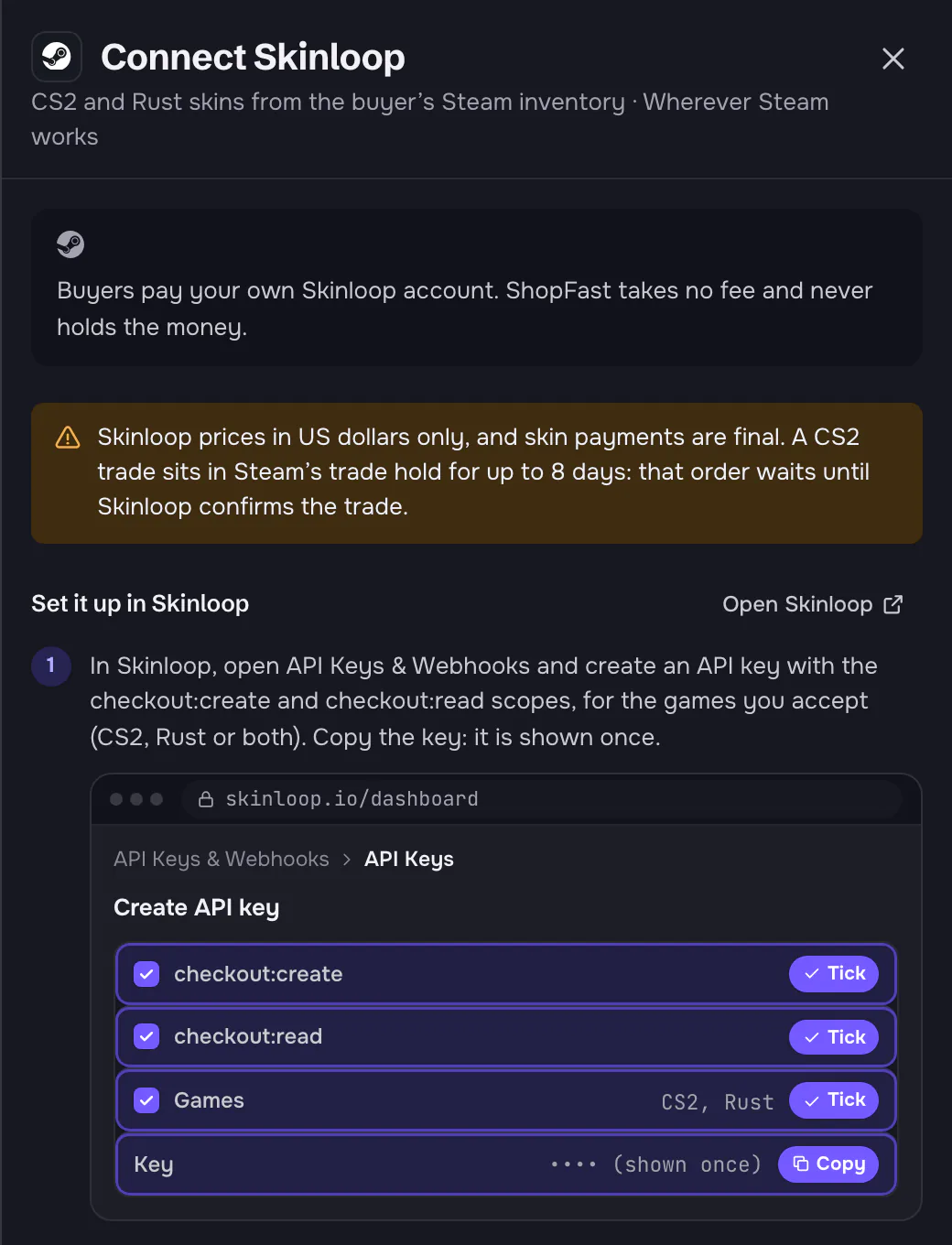
- In API Keys & Webhooks, create an API key with the
checkout:createandcheckout:readscopes for the games you accept. Copy it (shown once). - In Settings → Checkout Settings → Checkout Redirect Origins, add your store’s address.
- In API Keys & Webhooks → Webhooks, add ShopFast’s address, subscribe it to
payment.pending,payment.completedandpayment.reverted, and copy its signing secret (whsec_…). - If your key allows only one game, enter it in Games (
cs2orrust). Leave it empty for both.
Your store must sell in USD. A CS2 order waits during Steam’s trade hold and is delivered once Skinloop confirms the trade.
Person to person: Cash App and PayPal Friends & Family
Buyers send money to your $Cashtag or PayPal account with a short order code in the note. ShopFast’s pay page shows them the exact amount, where to send it and the code, and ShopFast confirms the payment by itself. They are under Person to person in the gallery.
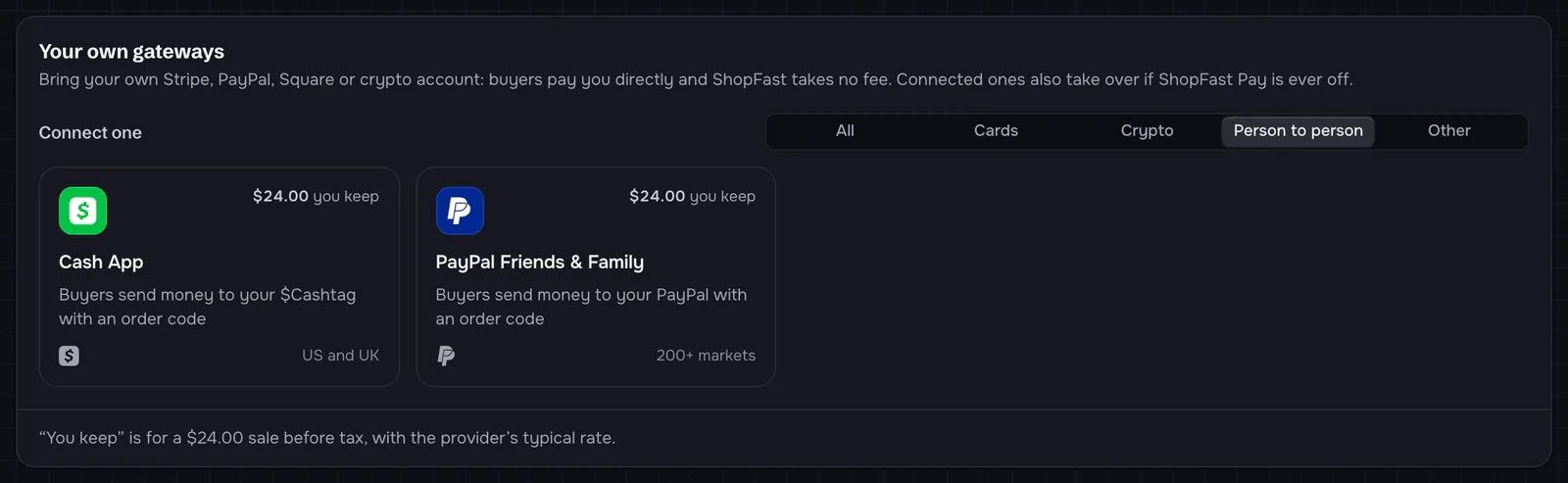
These are personal payments, and the panels say so before you connect. Cash App: buyers have no purchase protection, and Cash App can limit personal accounts that take business payments. A Cash App for Business account is safer. PayPal Friends & Family: PayPal's terms do not allow Friends & Family payments for goods: PayPal can limit your account, and buyers have no purchase protection. PayPal checkout, with keys or just your email, avoids that.
Cash App
Cash App has no notifications of its own for personal accounts, so Cash App’s receipt emails reach ShopFast through your Gmail. ShopFast accepts a receipt only when Cash App’s email signature checks out, it was sent to your email, and it carries the code and the exact amount.
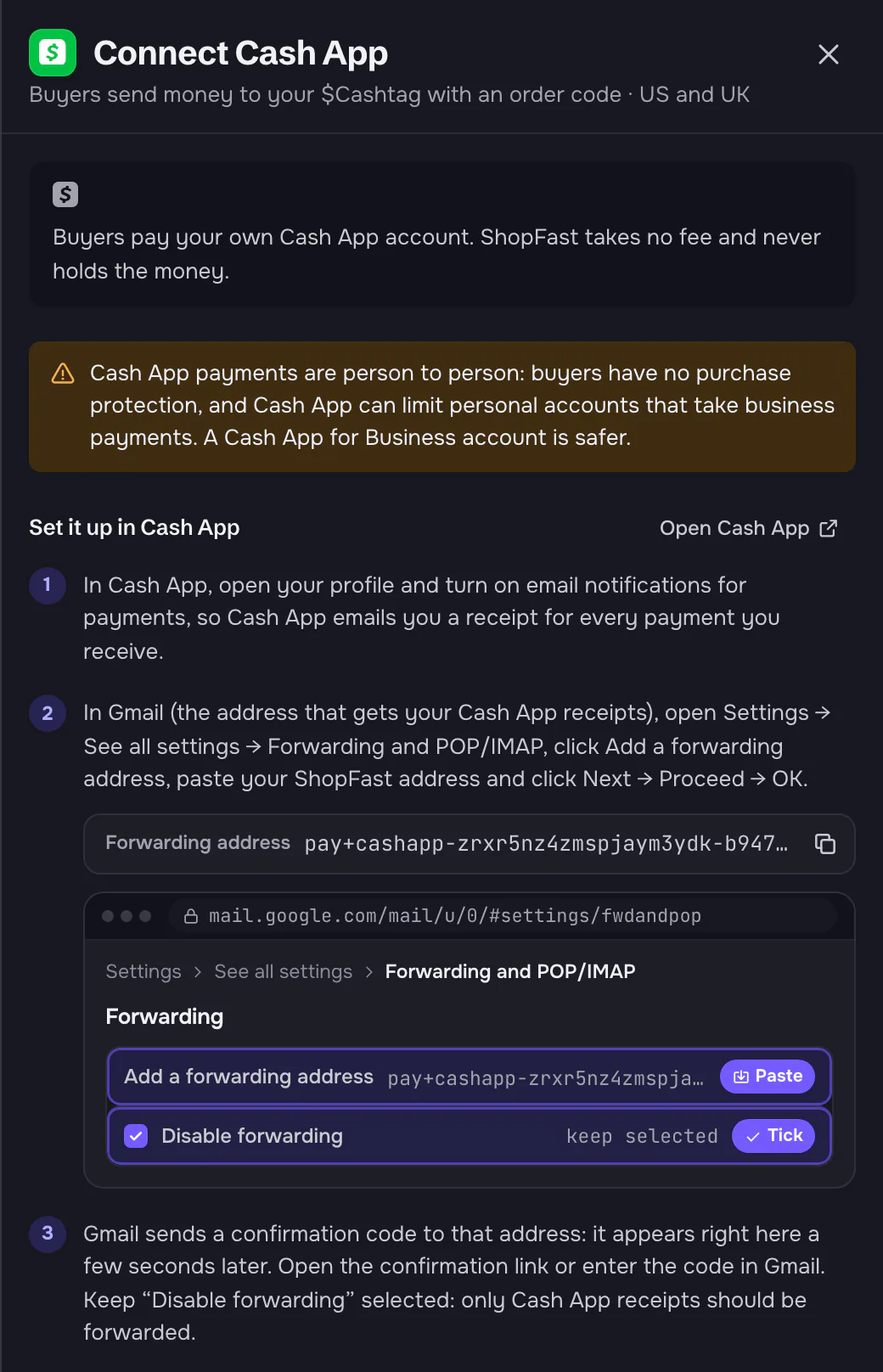
- In Cash App, open your profile and turn on email notifications for payments.
- Enter your $Cashtag and the Gmail address that gets your Cash App receipts, and click Connect Cash App.
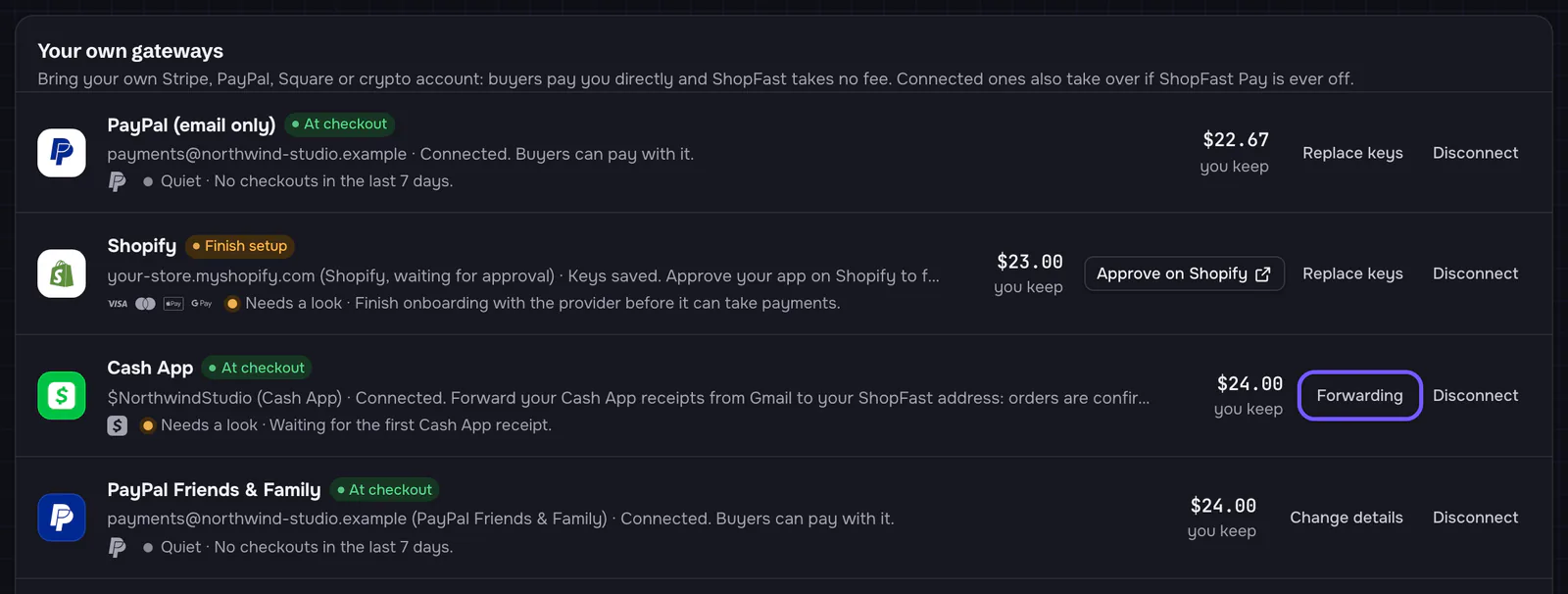
- The panel now shows Forward Cash App receipts to ShopFast, with three steps and a live status.
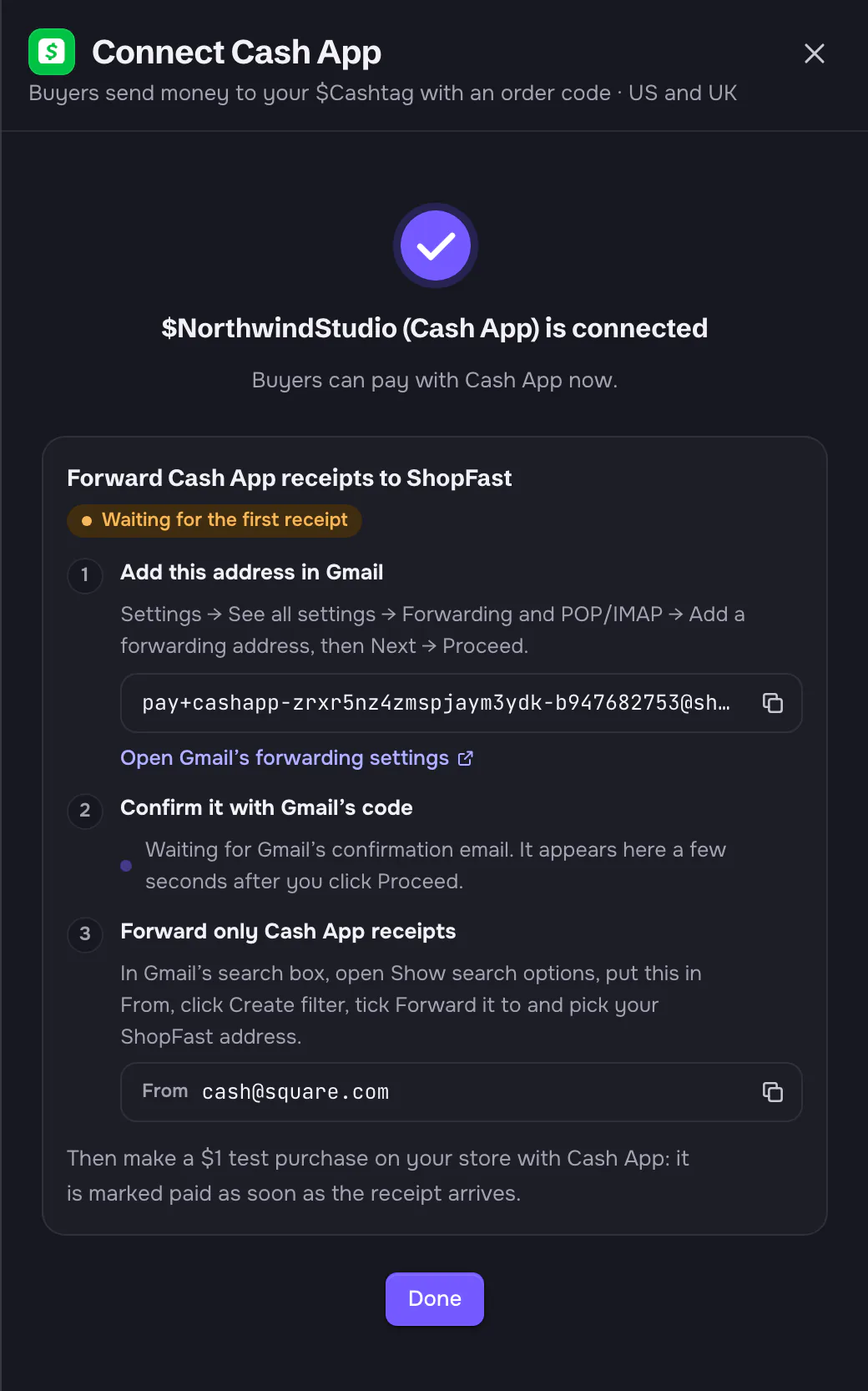
- Add this address in Gmail: in Gmail, Settings → See all settings → Forwarding and POP/IMAP → Add a forwarding address, paste your ShopFast address, then Next → Proceed. Open Gmail’s forwarding settings goes there.
- Confirm it with Gmail’s code: Gmail sends a confirmation code to your ShopFast address. A few seconds after you click Proceed, the code appears right in this step, with a copy button and Gmail’s confirmation link, so you never open that email. It also names the Gmail address that asked: only confirm it if that is yours. Keep Disable forwarding selected in Gmail: only Cash App receipts should be forwarded.
- Forward only Cash App receipts: in Gmail’s search box, open Show search options, put
[email protected]in From, click Create filter, tick Forward it to and pick your ShopFast address.
The status turns to Working with the time of the last receipt once one arrives. Then make a $1 test purchase on your store with Cash App: it is marked paid as soon as the receipt arrives. Later, Forwarding on the Cash App row opens these steps again.
PayPal Friends & Family
PayPal’s Instant Payment Notification (IPN) tells ShopFast about each payment. ShopFast checks every notification with PayPal, and it must name your account, the code and the exact amount.
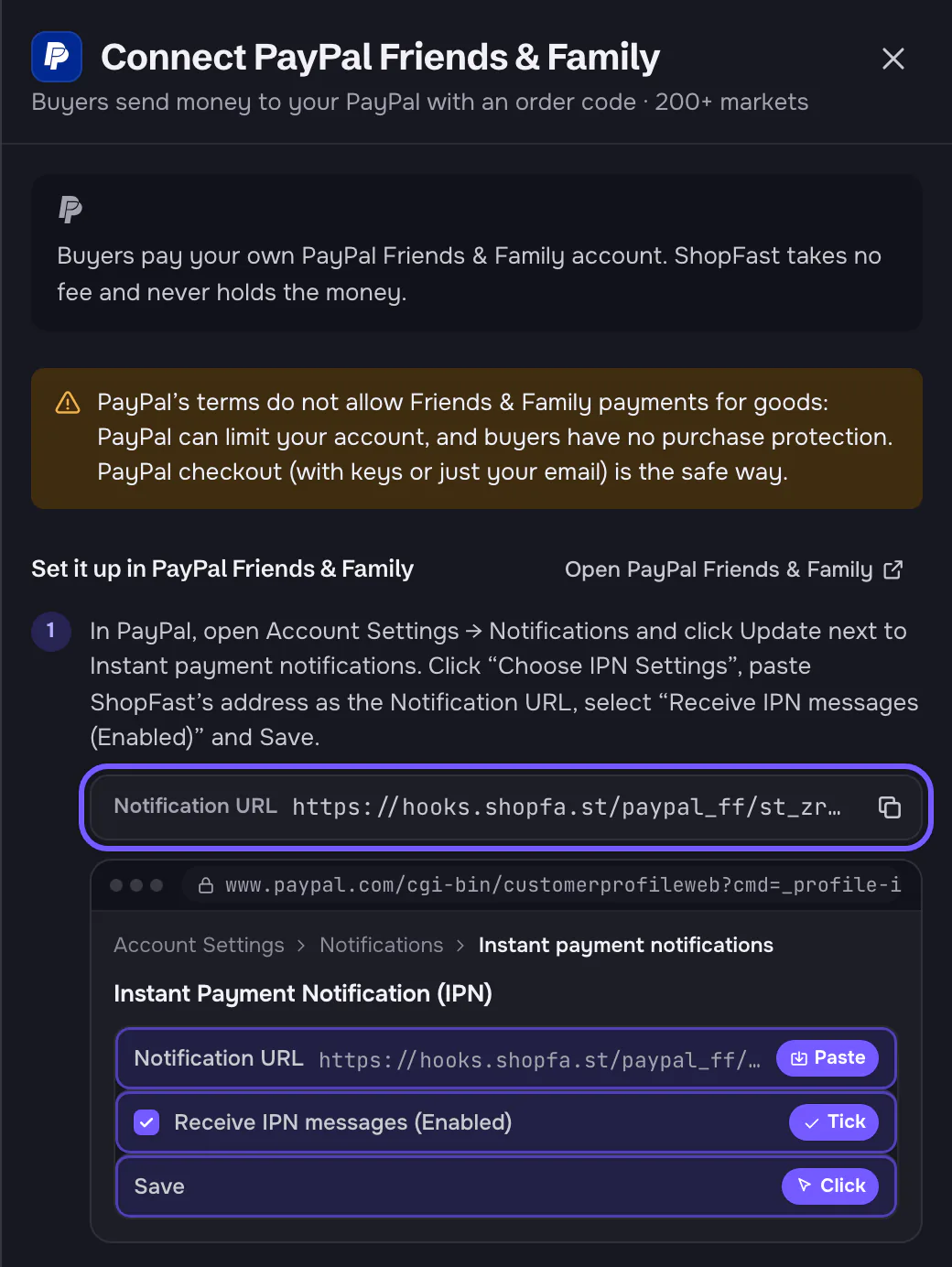
- In PayPal, open Account Settings → Notifications and click Update next to Instant payment notifications. Click Choose IPN Settings, paste ShopFast’s address as the Notification URL, select Receive IPN messages (Enabled) and save. PayPal shows these settings on Business accounts: if you do not see them, upgrade to Business (free) and keep the same email.
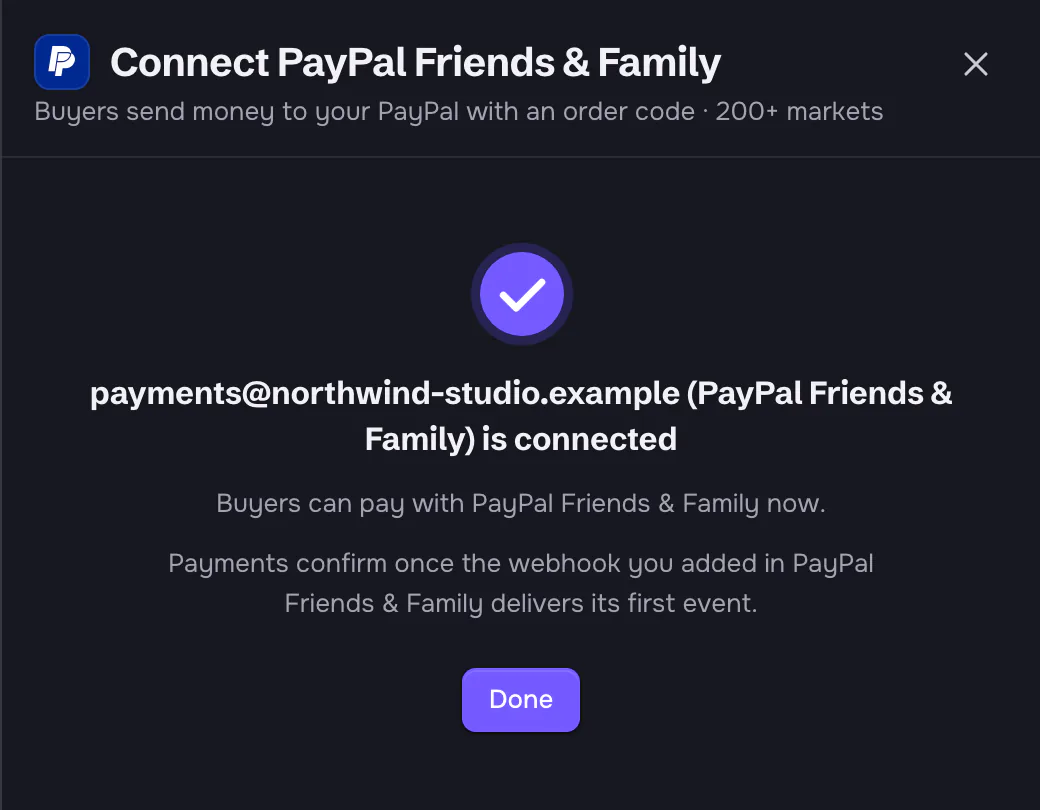
- Paste the Primary email of your PayPal account and click Connect PayPal Friends & Family.
- Make a $1 test purchase: the order is marked paid once PayPal reports it.
Payments that paid no order
A payment with the wrong amount, without the code, with more than one code, or with the code of a checkout that expired or was already paid does not pay an order. It is kept under its row as 1 payment paid no order (or more). Open it to see each payment’s amount, sender, note and the reason, for example The note has no order code. The row’s health also says how many payments in the last 7 days paid no order.
Sort these out with the buyer in Cash App or PayPal: refund the payment there, or make the order by hand. Refunds for person-to-person payments always happen in Cash App or PayPal.