# Get paid: the complete guide

> Every step of getting paid on ShopFast, with a screenshot of each: where things are in Money, connecting your own gateway, test mode, and what to do when a payment does not arrive.

Source: https://shopfa.st/docs/selling/get-paid

Everything about getting paid lives in the dashboard's **Money** section. This guide walks through it screen by screen.
In each screenshot, the control the step is about has an outline around it.

The guide has three parts:

<ul class="dcards">
  <li><a class="dcard" href="https://shopfa.st/docs/selling/get-paid"><b>1. The complete guide</b><span>This page: what is where, connecting a gateway step by step, test mode and troubleshooting.</span></a></li>
  <li><a class="dcard" href="https://shopfa.st/docs/selling/get-paid/gateways"><b>2. Gateway by gateway</b><span>What each gateway needs, where its setup differs, and the warnings the dashboard shows.</span></a></li>
  <li><a class="dcard" href="https://shopfa.st/docs/selling/get-paid/checkout-and-money"><b>3. Checkout rules and your money</b><span>Checkout order and limits, failover, refunds, manual methods, Balance, Financials and Fees.</span></a></li>
</ul>

## What is where

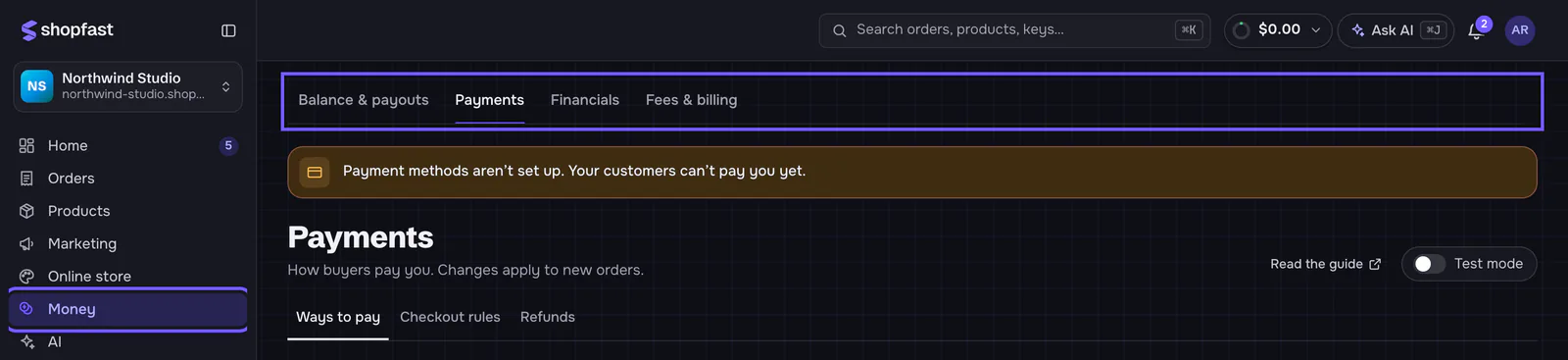
Open **Money** in the sidebar. Its four tabs sit above every Money page.

<figure class="doc-shot"><img src="https://shopfa.st/docs/img/get-paid/money-section.webp" alt="The dashboard with Money selected in the sidebar and its four tabs: Balance & payouts, Payments, Financials, Fees & billing. Below them, a banner says payment methods aren't set up, then the Payments page header." width="800" height="184" loading="lazy" decoding="async"><figcaption>Money in the sidebar, and its tabs. Until buyers can pay you, a banner on these pages says so.</figcaption></figure>

| Tab | What it is for |
| --- | --- |
| **Balance & payouts** | What ShopFast holds for you and when it is paid out. On your own gateways it says your gateway pays you, and lists what is connected. |
| **Payments** | How buyers pay you: the ways to pay, the rules at checkout and refunds as store credit. You set up gateways here. |
| **Financials** | Statements built from your ledger, by period and by month, payout reconciliation and tax by country, with CSV downloads. |
| **Fees & billing** | What ShopFast takes from a sale, an example sale, and what ShopFast charged each month. |

The old addresses **Settings → Payments** and **Settings → Billing** open these pages now.

**Payments** has three views. **Ways to pay** is where you connect gateways. **Checkout rules** sets the order buyers see
them in and when each one shows. **Refunds** turns on refunds as store credit. The header has a **Read the guide** link
(to this page) and the **Test mode** switch.

<figure class="doc-shot"><img src="https://shopfa.st/docs/img/get-paid/payments-views.webp" alt="The Payments page header: the title, the line 'How buyers pay you. Changes apply to new orders.', a Read the guide link, the Test mode switch, and the views Ways to pay, Checkout rules and Refunds, outlined." width="800" height="94" loading="lazy" decoding="async"><figcaption>The three views of <strong>Payments</strong>, with <strong>Read the guide</strong> and <strong>Test mode</strong> on the right.</figcaption></figure>

## The two ways to get paid

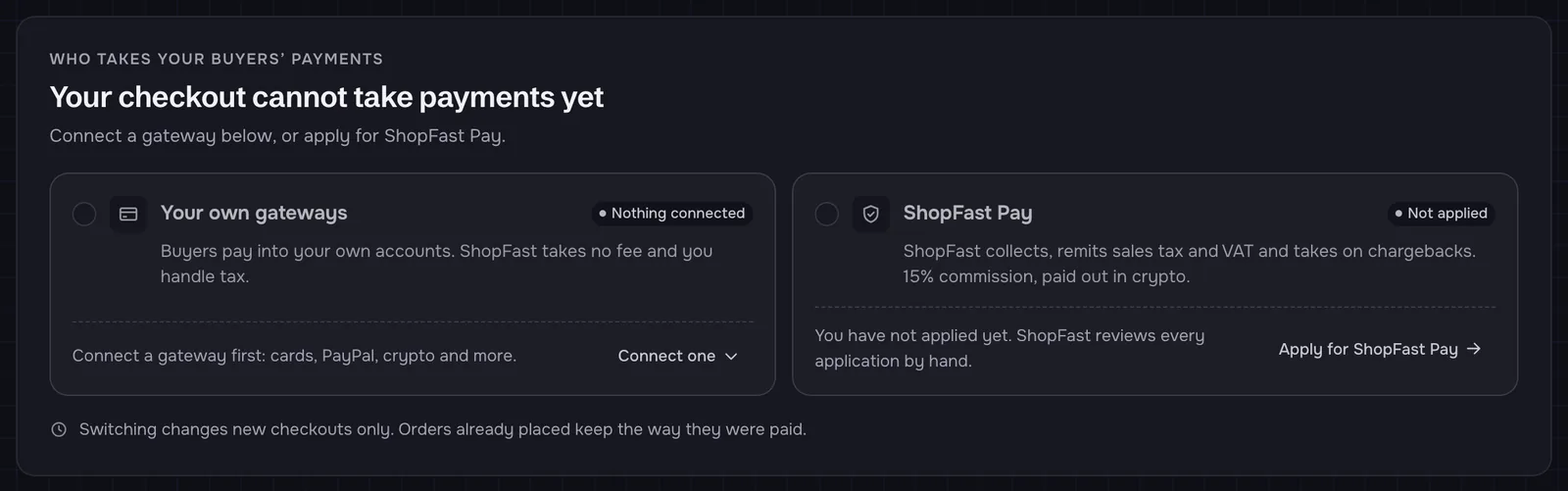
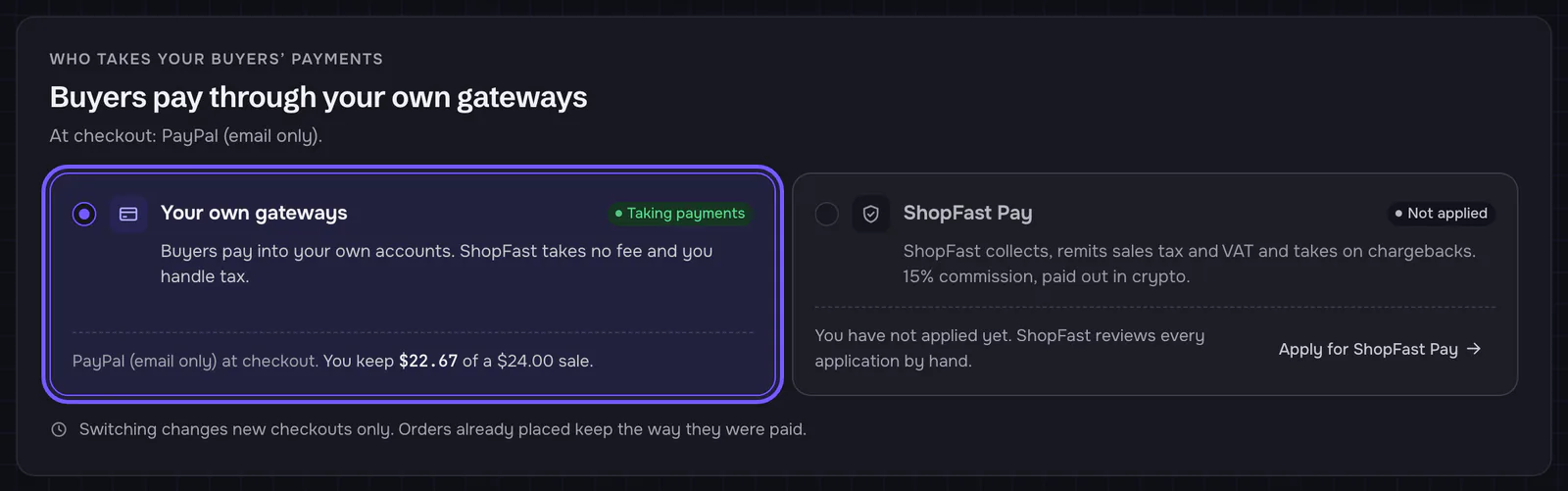
The first card on **Ways to pay**, **Who takes your buyers' payments**, is where you choose how buyers pay you, and it
is always there. Its headline tells you where you stand: **Buyers pay through your own gateways**, **Buyers pay through
ShopFast Pay**, or, on a new store, **Your checkout cannot take payments yet** until it has a way to get paid.

<figure class="doc-shot"><img src="https://shopfa.st/docs/img/get-paid/now-empty.webp" alt="The card 'Who takes your buyers’ payments' on a new store: 'Your checkout cannot take payments yet. Connect a gateway below, or apply for ShopFast Pay.' Two options, neither picked: Your own gateways, 'Nothing connected', with a Connect one button; ShopFast Pay, 'Not applied', with Apply for ShopFast Pay." width="800" height="251" loading="lazy" decoding="async"><figcaption>A new store: nothing at checkout yet, and neither option picked.</figcaption></figure>

- Under the headline: the ways to pay buyers see at checkout right now.
- Two options, **Your own gateways** and **ShopFast Pay**, each with one line on what it means. The one taking payments
  now is selected and marked **Taking payments**.
- Under each option: what it means for your store now, and what you keep on a $24.00 sale through it (the example sale
  is in your store's currency).
- An option you cannot pick yet says why. **Your own gateways** needs a gateway first (**Connect one** takes you to the
  gallery). **ShopFast Pay** shows the state of your application, such as **Not applied** or **In review**, with a
  link to the application.
- To switch, pick the other option. A short confirmation says what happens to new checkouts; orders already placed
  keep the way they were paid. The options work with the keyboard too: Tab to them, then the arrow keys or Space.

There are two ways to get paid. You can set up both.

| | Your own gateways | ShopFast Pay |
| --- | --- | --- |
| Who collects | Your own account: Stripe, PayPal, Square, a crypto wallet and more | ShopFast, as [merchant of record](https://shopfa.st/docs/selling/payment-models) |
| ShopFast's fee per sale | None. Your provider's own fee only | Your plan's commission and fixed fee per order, plus the merchant of record fee for card processing, tax and chargebacks ([today's rates](https://shopfa.st/pricing#fees)) |
| Sales tax and VAT | Yours to handle | Collected and remitted by ShopFast |
| When you are paid | By your gateway, on its own schedule | In crypto to your payout wallet, weekly or when you press **Withdraw** |
| To start | Connect one. There is no review | Apply on a plan that includes it. ShopFast reviews every application by hand |

### Your own gateways

Buyers pay your own account and the money never passes through ShopFast. ShopFast takes no fee on these orders. You
connect a gateway with your own keys, or with just an email or a $Cashtag for some of them. The next section shows how.

### ShopFast Pay

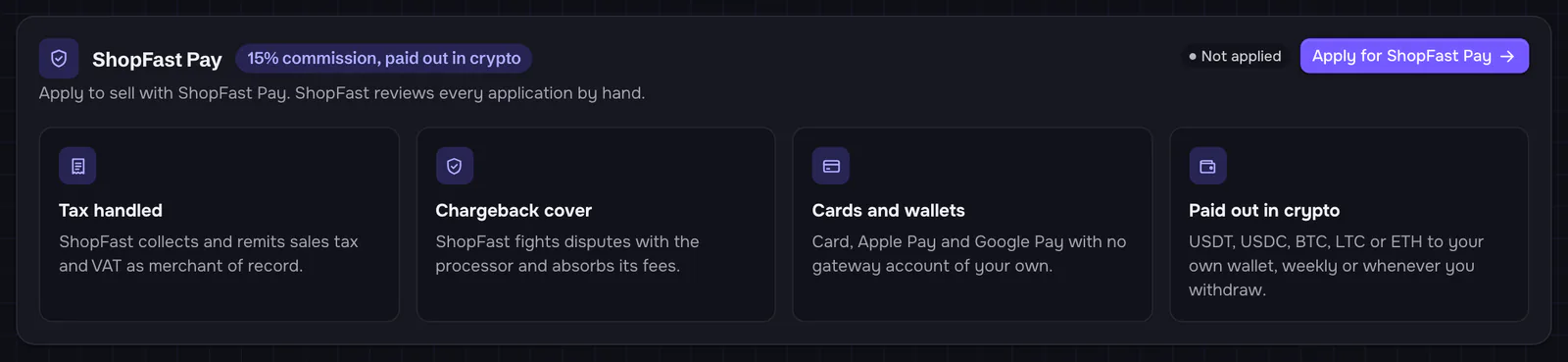
ShopFast Pay is ShopFast's own way to collect payments. Its card shows your plan's rate (in the picture, **15% commission, paid out in crypto**),
and the line **Apply to sell with ShopFast Pay. ShopFast reviews every application by hand.** The four tiles below it
say what ShopFast Pay covers: tax, chargebacks, cards and wallets, and crypto payouts.

<figure class="doc-shot"><img src="https://shopfa.st/docs/img/get-paid/shopfast-pay-card.webp" alt="The ShopFast Pay card: '15% commission, paid out in crypto', 'Apply to sell with ShopFast Pay. ShopFast reviews every application by hand.', the badge Not applied and the button Apply for ShopFast Pay, with four tiles: Tax handled, Chargeback cover, Cards and wallets, Paid out in crypto." width="800" height="185" loading="lazy" decoding="async"><figcaption>The ShopFast Pay card on a store that has not applied.</figcaption></figure>

ShopFast Pay is available by application, and ShopFast decides on each one. Until your store is approved, the
**ShopFast Pay** option cannot be picked and says where your application stands. Your own gateways need no approval,
so you can sell with them in the meantime. How ShopFast Pay works, what it costs and how applying works:
[ShopFast Pay](https://shopfa.st/docs/selling/shopfast-pay).

## Connect your own gateway, step by step

The steps are the same for every gateway connected with its keys. The screenshots use Stripe. What differs per gateway is
in [Gateway by gateway](https://shopfa.st/docs/selling/get-paid/gateways). The same gallery is also in **Get started → Choose how you
get paid**.

### 1. Pick a gateway

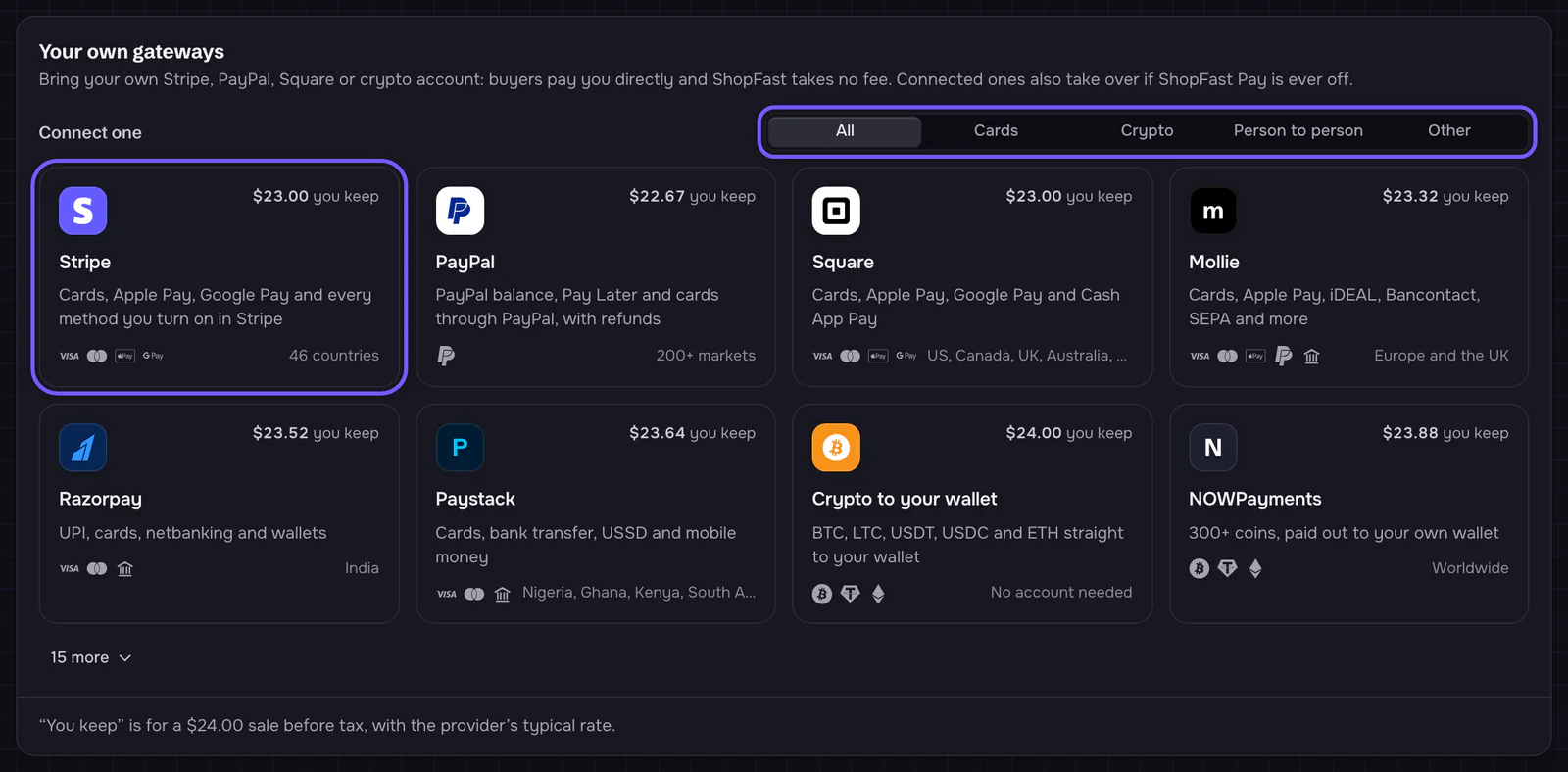
Scroll to **Your own gateways** on **Ways to pay**. Under **Connect one**, the gallery shows the gateways most sellers
pick first. Filter it with **All**, **Cards**, **Crypto**, **Person to person** and **Other**, and open the rest with the
**more** button under the first two rows.

<figure class="doc-shot"><img src="https://shopfa.st/docs/img/get-paid/gallery.webp" alt="The Your own gateways card with the gallery: the filter All, Cards, Crypto, Person to person, Other, outlined, and tiles for Stripe (outlined), PayPal, Square, Mollie, Razorpay, Paystack, Crypto to your wallet and NOWPayments, each with what you keep on a $24.00 sale. A '15 more' button is below." width="800" height="394" loading="lazy" decoding="async"><figcaption>The gallery. The filter and the Stripe tile are outlined.</figcaption></figure>

Each tile shows:

- **you keep**: what stays with you from a $24.00 sale before tax, at the provider's typical rate (the footer says so);
- what buyers can pay with, and the logos of those payment methods;
- where the provider works, or **Not for EUR prices** (your currency) when it cannot take your store's currency.

Click a tile to open its panel. **Crypto to your wallet** and **Payment plugins** open their own pages, **Manual methods**
scrolls to its card on the same page, and **BTCPay Server** opens a short wizard.

### 2. Follow the steps in the panel

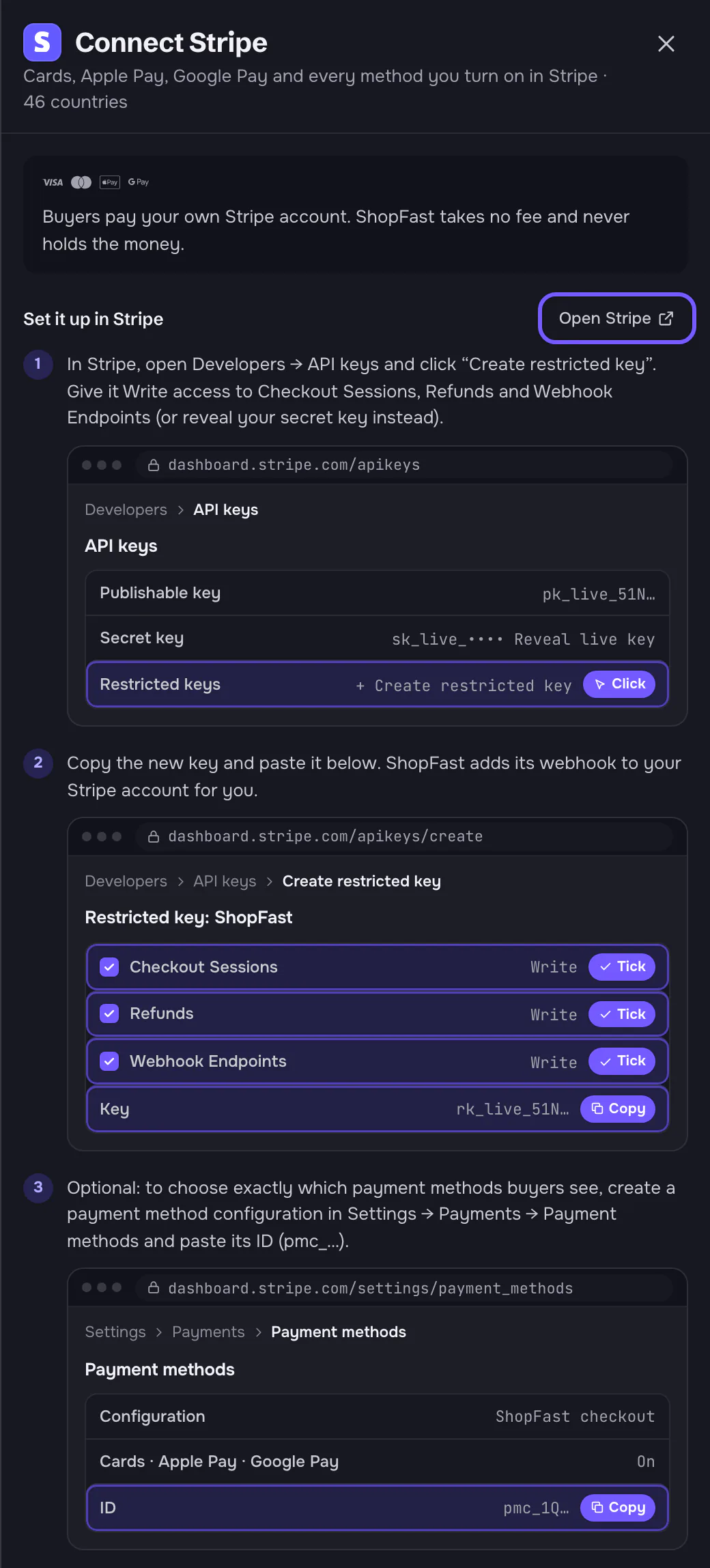
The panel starts with what the gateway does: **Buyers pay your own Stripe account. ShopFast takes no fee and never holds
the money.** Below, **Set it up in Stripe** lists the steps. **Open Stripe** opens the right page of your provider's
dashboard in a new tab.

<figure class="doc-shot"><img src="https://shopfa.st/docs/img/get-paid/stripe-steps.webp" alt="The Connect Stripe panel: the promise line, then Set it up in Stripe with an Open Stripe link (outlined) and three numbered steps, each with a drawn browser window of Stripe's dashboard. Rows to act on are marked Click, Tick or Copy: Create restricted key, the three Write permissions, the key, and the payment method configuration ID." width="520" height="1148" loading="lazy" decoding="async"><figcaption>The setup steps, with a drawing of each screen you visit in Stripe. <strong>Open Stripe</strong> is outlined.</figcaption></figure>

Each step has a drawing of the provider's screen: the address, the menu path to get there, and the rows that matter.
The rows you act on are highlighted and say what to do:

- **Click**: a button or link to click there.
- **Tick**: a box or permission to turn on.
- **Copy**: a value to copy from the provider into ShopFast.
- **Paste**: a value to paste from ShopFast into the provider.

The drawings are not screenshots, so they never show anyone's account. Providers change their menus from time to time:
the step's text names what to look for.

### 3. Copy ShopFast's address when a step asks for it

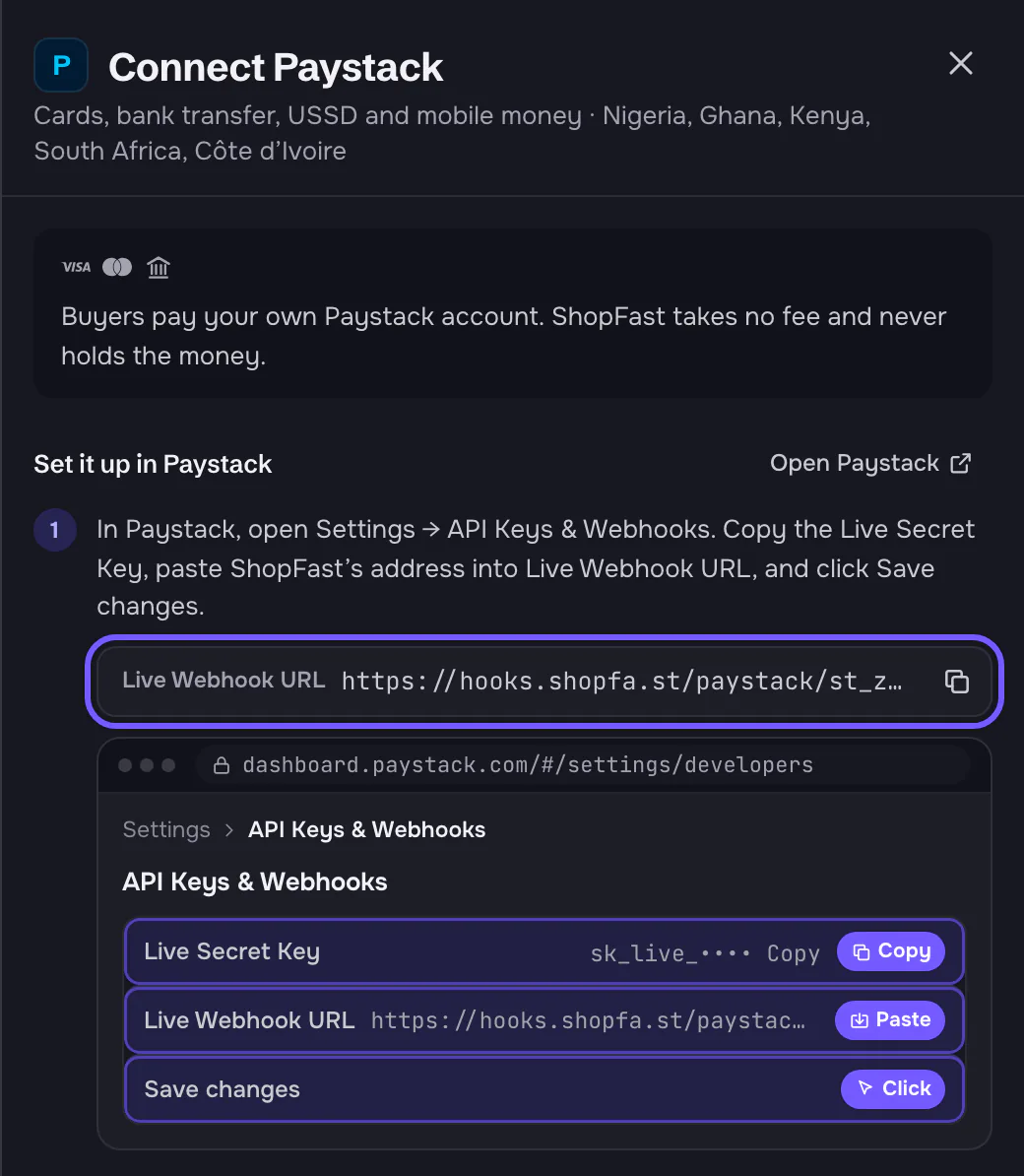
Some providers need an address from ShopFast: a webhook address, a redirect address or your store's address. The step
shows it with a copy button.

<figure class="doc-shot"><img src="https://shopfa.st/docs/img/get-paid/paystack-webhook.webp" alt="The Connect Paystack panel: step 1 with a 'Live Webhook URL' box holding ShopFast's address for this store and a copy button, outlined, above a drawing of Paystack's API Keys & Webhooks page with the rows Live Secret Key (Copy), Live Webhook URL (Paste) and Save changes (Click)." width="520" height="597" loading="lazy" decoding="async"><figcaption>Paystack's step gives your store's webhook address to copy (outlined) and shows where it goes.</figcaption></figure>

The address belongs to your store, so copy it from your own dashboard rather than from an example.

### 4. Paste your keys and connect

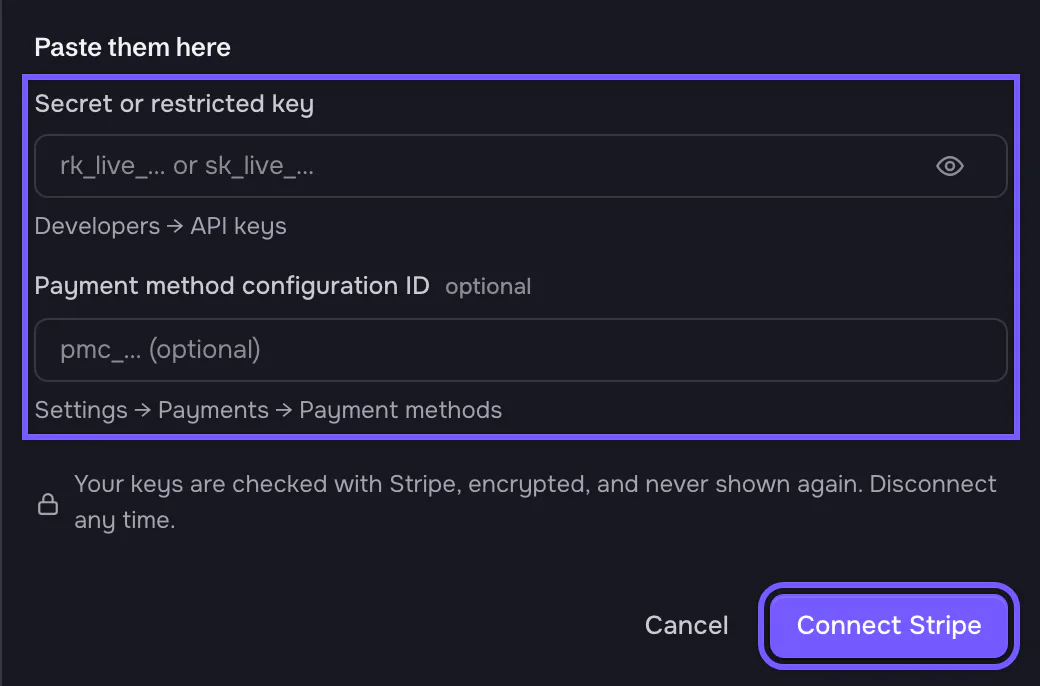
Under **Paste them here**, paste what the steps told you to copy. Each field says where to find its value, and optional
fields say **optional**. Then click **Connect Stripe** (the button names the gateway).

<figure class="doc-shot"><img src="https://shopfa.st/docs/img/get-paid/stripe-keys.webp" alt="The bottom of the Connect Stripe panel: Paste them here, with the fields 'Secret or restricted key' (hint: Developers → API keys) and 'Payment method configuration ID' marked optional, outlined; the note 'Your keys are checked with Stripe, encrypted, and never shown again. Disconnect any time.'; and the buttons Cancel and Connect Stripe, outlined." width="520" height="343" loading="lazy" decoding="async"><figcaption>The key fields and <strong>Connect Stripe</strong>, outlined.</figcaption></figure>

When you click it:

1. The panel checks each value has the right shape. A key of the wrong kind gets a message under its field.
2. ShopFast checks the keys with the provider. Keys the provider refuses, or test keys while checkout takes real
   payments, are turned down with a message ([troubleshooting](#keys-refused)).
3. Where the provider allows it, ShopFast adds its webhook to your account for you.
4. Your keys are encrypted and never shown again, not to you and not to your team.

### 5. See who takes your payments now

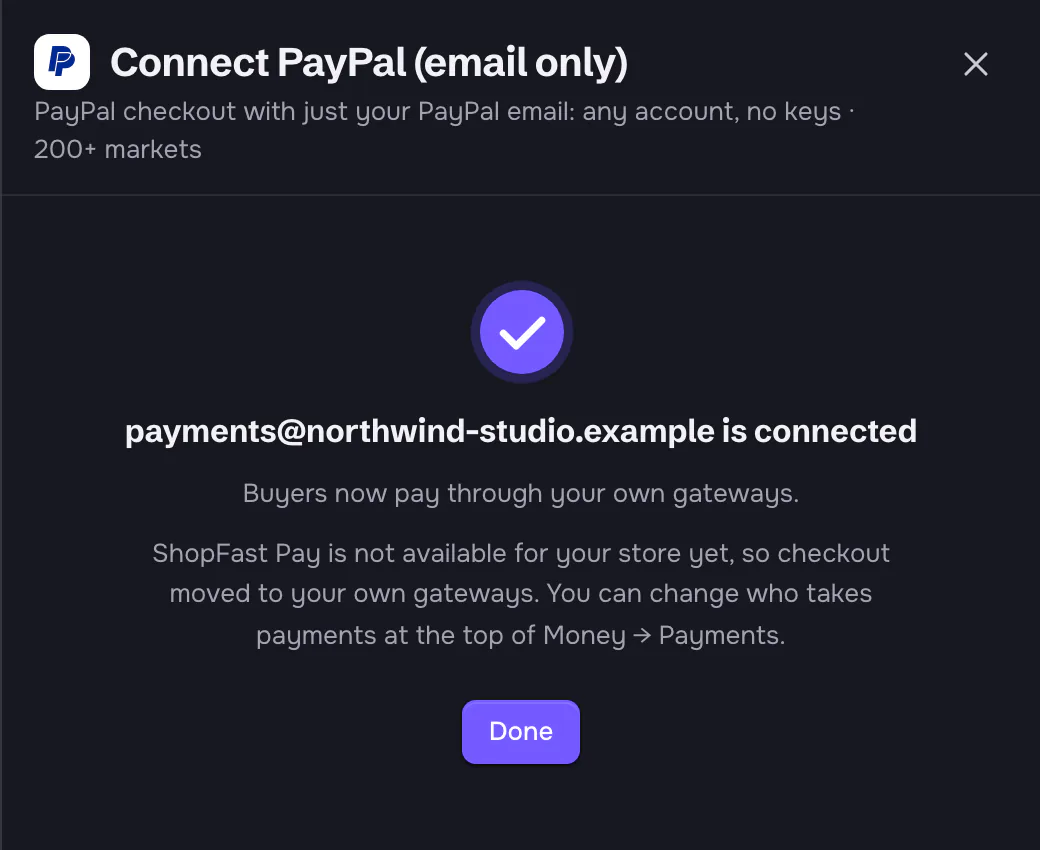
The panel ends on a success state with the account that is now connected.

<figure class="doc-shot"><img src="https://shopfa.st/docs/img/get-paid/connected-success.webp" alt="The panel after connecting PayPal (email only): a check mark, 'payments@northwind-studio.example is connected', 'Buyers now pay through your own gateways.' and 'ShopFast Pay is not available for your store yet, so checkout moved to your own gateways. You can change who takes payments at the top of Money → Payments.', with a Done button." width="520" height="425" loading="lazy" decoding="async"><figcaption>Connected. ShopFast Pay isn’t serving this store, so checkout moved to your own gateways by itself.</figcaption></figure>

What it says depends on how your store is set up. There is nothing more to do in the panel:

- ShopFast Pay is not available for your store yet (a new store, or one not approved): connecting moved your store to
  your own gateways by itself, and the panel says **Buyers now pay through your own gateways**.
- Already on your own gateways: **Buyers can pay with Stripe now.**
- ShopFast Pay takes your payments: buyers keep paying through it. To have them pay your gateway instead, pick **Your
  own gateways** at the top of **Ways to pay**.

You can change who takes payments any time with that choice. Orders already placed keep the way they were paid. When
ShopFast switches for you, and when it never does: [payment models](https://shopfa.st/docs/selling/payment-models#when-shopfast-switches-for-you).

<figure class="doc-shot"><img src="https://shopfa.st/docs/img/get-paid/now-own.webp" alt="The card 'Who takes your buyers’ payments' after connecting: 'Buyers pay through your own gateways. At checkout: PayPal (email only).' Your own gateways is picked and outlined, marked 'Taking payments', 'You keep $22.67 of a $24.00 sale.' ShopFast Pay: 'Not applied', with Apply for ShopFast Pay." width="800" height="251" loading="lazy" decoding="async"><figcaption>Your own gateways now take buyers’ payments. Pick ShopFast Pay here once it is approved.</figcaption></figure>

### 6. Check the connected gateway

Connected gateways are listed at the top of **Your own gateways**, above the gallery.

<figure class="doc-shot"><img src="https://shopfa.st/docs/img/get-paid/connected-row.webp" alt="A connected gateway row: PayPal (email only) with the badge At checkout, the line 'payments@northwind-studio.example · Connected. Buyers can pay with it.', the health 'Quiet · No checkouts in the last 7 days.', '$22.67 you keep', and the buttons Replace keys and Disconnect, outlined." width="800" height="117" loading="lazy" decoding="async"><figcaption>A connected gateway. Its buttons are outlined.</figcaption></figure>

Each row shows:

- **The badge**: **At checkout** (buyers see it now), **Connected** (ready, but your store is set to ShopFast Pay) or
  **Finish setup** (one step left, such as Shopify's approval).
- **The account** it is connected to, and what that means right now.
- **Health**: **Healthy** (how many checkouts were paid in the last 7 days), **Quiet** (no checkouts in the last 7
  days), **Needs a look** (for example few checkouts paid, or a step left) or **Down** (it cannot take payments).
- **you keep**: what you keep on the $24.00 example sale through this gateway.
- **Replace keys** opens the panel again to connect with new keys. Person-to-person methods say **Change details**, and
  Cash App says **Forwarding** (its forwarding steps come first).
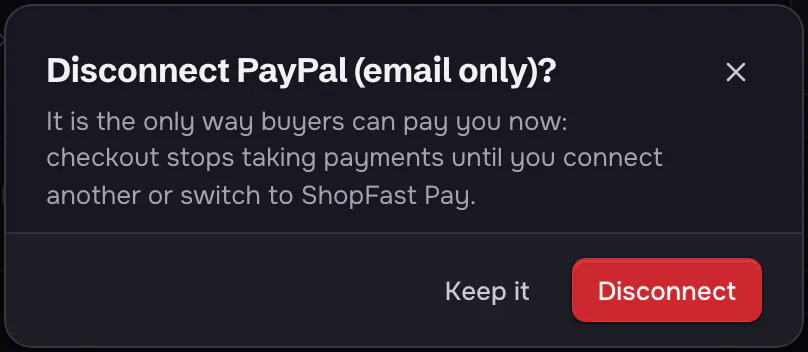
- **Disconnect** removes the keys, and the webhook ShopFast added where it added one. It asks first.

<figure class="doc-shot"><img src="https://shopfa.st/docs/img/get-paid/disconnect-modal.webp" alt="A dialog: 'Disconnect PayPal (email only)? It is the only way buyers can pay you now: checkout stops taking payments until you connect another or switch to ShopFast Pay.' with the buttons Keep it and Disconnect." width="404" height="176" loading="lazy" decoding="async"><figcaption>Disconnecting asks first, and warns when it is your only way to get paid.</figcaption></figure>

When the gateway is not your only way to get paid, the dialog says new checkouts stop offering it and paid orders stay
as they are.

## Test mode and a test purchase

### Test mode

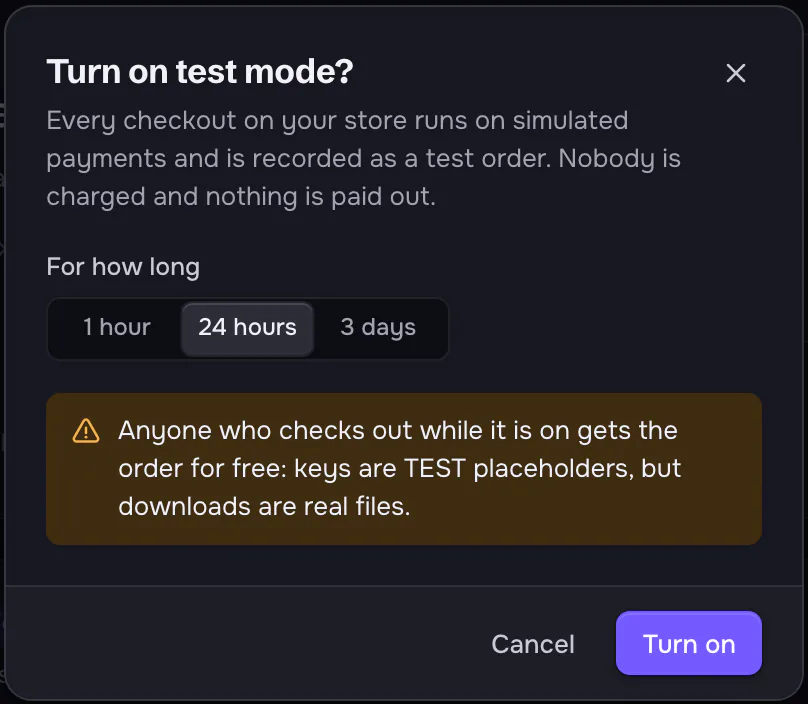
Test mode lets you try checkout as a buyer would without real money. Turn on the **Test mode** switch in the
**Payments** header, pick **1 hour**, **24 hours** or **3 days**, and click **Turn on**.

<figure class="doc-shot"><img src="https://shopfa.st/docs/img/get-paid/testmode-modal.webp" alt="The dialog 'Turn on test mode?': 'Every checkout on your store runs on simulated payments and is recorded as a test order. Nobody is charged and nothing is paid out.' For how long: 1 hour, 24 hours (selected), 3 days. A warning: 'Anyone who checks out while it is on gets the order for free: keys are TEST placeholders, but downloads are real files.' Buttons Cancel and Turn on." width="404" height="352" loading="lazy" decoding="async"><figcaption>Turning on test mode, with its warning.</figcaption></figure>

While it is on, the switch says until when. It turns itself off when the time is up. To end it sooner, turn the switch
off: checkouts take real payments again.

<figure class="doc-shot"><img src="https://shopfa.st/docs/img/get-paid/testmode-on.webp" alt="The Payments header with the Test mode switch on, outlined, reading 'Test mode · until Oct 26, 10:18 AM'." width="800" height="55" loading="lazy" decoding="async"><figcaption>Test mode on, with the time it ends.</figcaption></figure>

In test mode, every way to pay at checkout runs on simulated payments. Your order and rules, delivery and the order
page work as for real, and each order is recorded as a test. It does not use your gateway's keys, so it does not
check your gateway connection. That is the next step.

<div class="callout callout--warn"><p>Anyone who checks out while test mode is on gets the order for free. Keys are
<code>TEST-</code> placeholders, but files are real. Keep test mode short on a store that already has buyers.</p></div>

### Simulate a sale from Get started

**Home → Get started → Make a test sale → Simulate first sale** runs one test order through checkout, delivery and your
balance in a few seconds. Your store needs one active product.

<figure class="doc-shot"><img src="https://shopfa.st/docs/img/get-paid/test-sale-step.webp" alt="The Get started step 'Make a test sale: Run a test order through checkout, delivery and your balance.' with the button Simulate first sale, outlined." width="639" height="99" loading="lazy" decoding="async"><figcaption>The test sale step in <strong>Get started</strong>.</figcaption></figure>

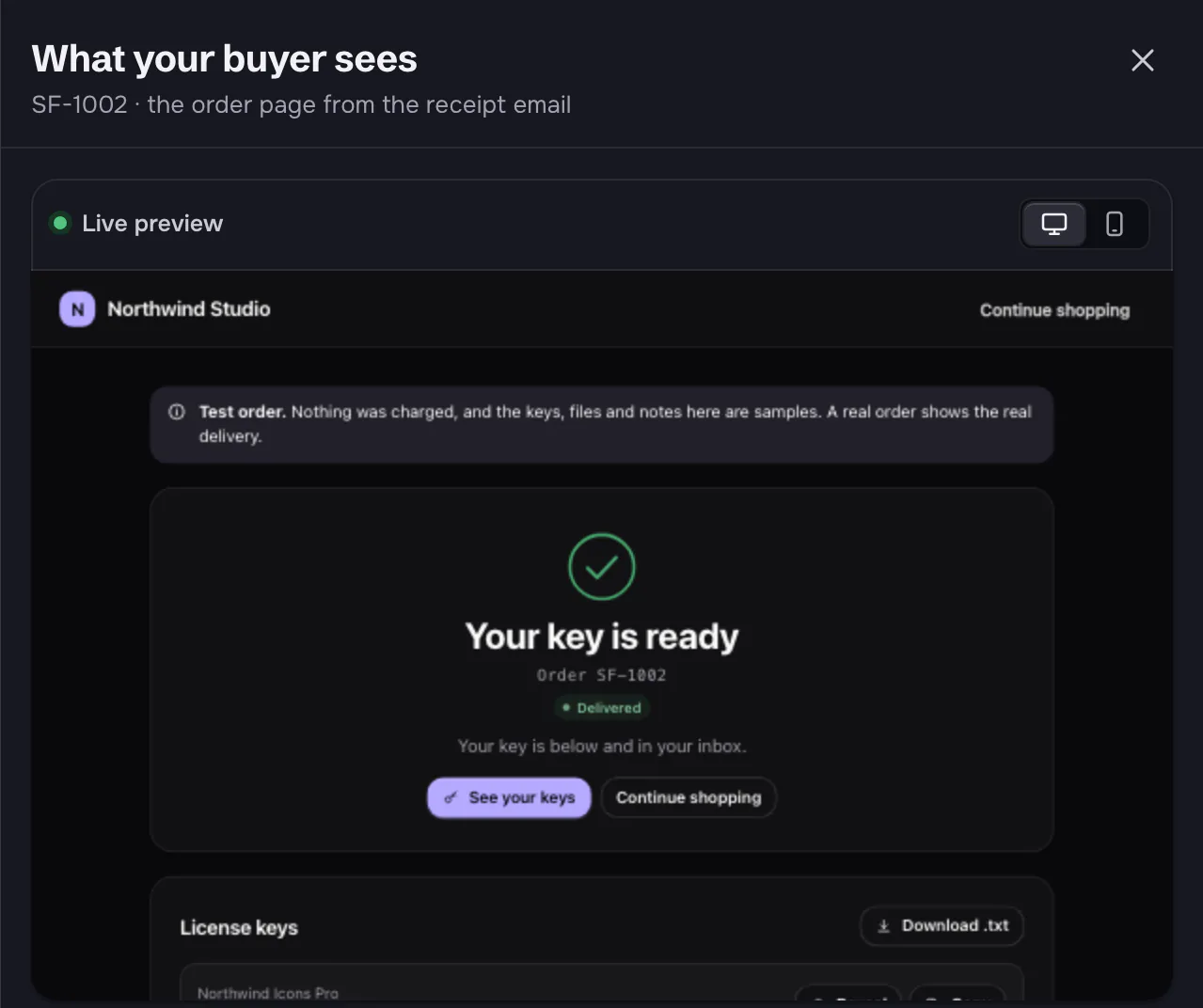
When it is done, a panel shows **What your buyer sees**: the order page from the receipt email, marked as a test
order.

<figure class="doc-shot"><img src="https://shopfa.st/docs/img/get-paid/test-sale-result.webp" alt="The panel 'What your buyer sees: SF-1002 · the order page from the receipt email', with a live preview of the buyer's order page: a note 'Test order. Nothing was charged…', 'Your key is ready', Delivered, and the License keys list." width="640" height="536" loading="lazy" decoding="async"><figcaption>The buyer's order page after a simulated sale.</figcaption></figure>

More on the checklist and the test sale: [Get started and your test sale](https://shopfa.st/docs/store/get-started).

### Test your gateway with a real payment

To check the gateway itself, make sure test mode is off and buy something small on your own store with that way to
pay. The order is marked paid, and delivered, as soon as the gateway confirms the payment. Then refund it from the
order, or in your provider's dashboard for gateways that refund there. The Cash App and PayPal Friends & Family panels
suggest a $1 test purchase.

## How every payment is checked

An order is made, and its keys or files delivered, only when the payment:

- comes from the provider itself, read back from the provider with your credentials;
- is for the checkout ShopFast created, at the provider the buyer chose;
- is complete, not pending or partly paid;
- matches the checkout's total exactly, in amount and currency;
- has not been counted before.

The full list, and what happens to late or second payments: [How every payment is checked](https://shopfa.st/docs/selling/own-gateways#how-every-payment-is-checked).

## Troubleshooting

### Your checkout cannot take payments

**Who takes your buyers' payments** says **Your checkout cannot take payments yet** when no way to pay is live. Check
that:

- at least one gateway is connected, with no **Finish setup** badge;
- your store uses its own gateways: if the gateway's badge says **Connected** rather than **At checkout**, pick **Your
  own gateways** on that card;
- the gateway takes your store's currency ([below](#currency-not-supported));
- on **Checkout rules**, the way to pay is **Shown** and its rules and order limits fit the order. The preview there
  shows what a buyer in a given country, paying a given amount, sees.

### Keys refused

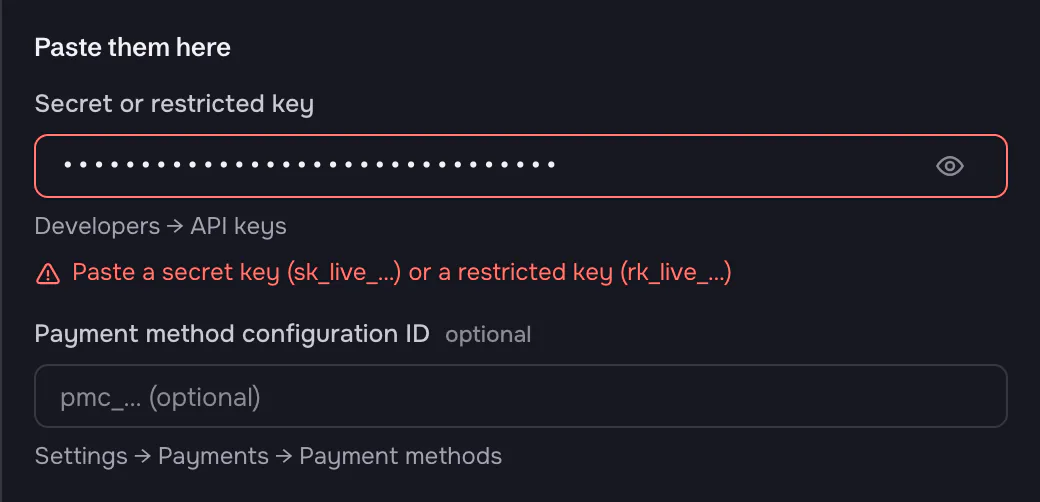
A value of the wrong kind gets a message under its field before anything is sent, for example when you paste
Stripe's publishable key instead of a secret or restricted key.

<figure class="doc-shot"><img src="https://shopfa.st/docs/img/get-paid/stripe-key-error.webp" alt="The Stripe key field with a red border and the message 'Paste a secret key (sk_live_…) or a restricted key (rk_live_…)'." width="520" height="251" loading="lazy" decoding="async"><figcaption>The wrong kind of key, caught under the field.</figcaption></figure>

When the provider refuses the keys, the message shows above the buttons, such as **Stripe did not accept these keys.
Check that you copied the live keys of the right account.** Copy them again from the provider's live mode. For Stripe, a
restricted key needs write access to Checkout Sessions, Refunds and Webhook Endpoints.

### Test keys while checkout takes real payments

Where a provider marks its test keys (Stripe, Mollie, Razorpay, Paystack, Paddle), ShopFast refuses them while checkout
takes real payments: **These are Stripe test keys. Checkout takes real payments, so paste your live keys.** SumUp,
Authorize.Net and NMI accounts in sandbox or test mode are refused too. To try checkout without money, use
[test mode](#test-mode) instead.

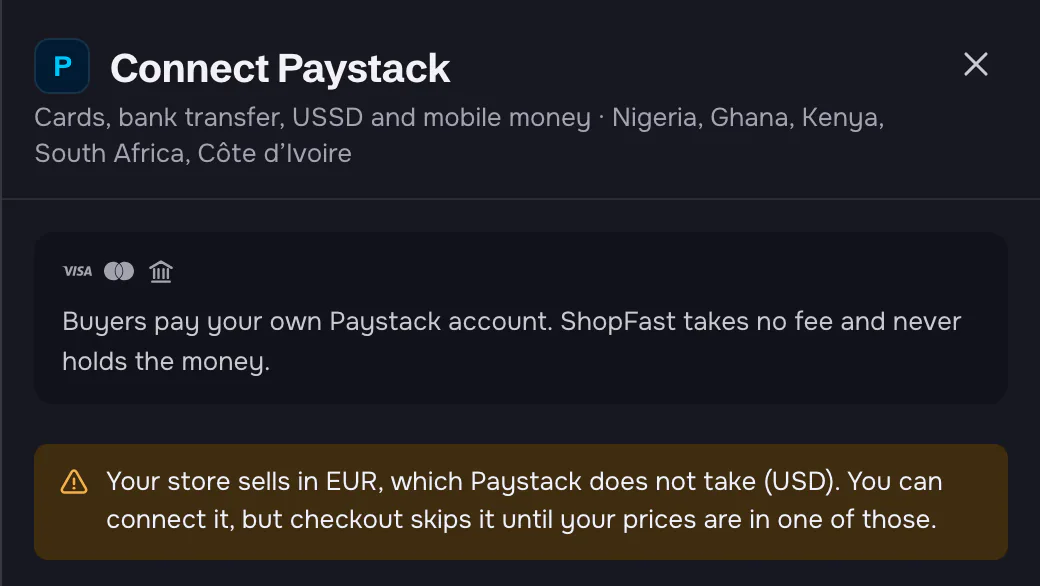
### Currency not supported

Each gateway takes payments only in the currencies it supports. The gallery says **Not for EUR prices** (with your
currency) on the tile, and the panel says so before you connect.

<figure class="doc-shot"><img src="https://shopfa.st/docs/img/get-paid/currency-tile.webp" alt="Gallery tiles on a store that sells in euros: the Paystack tile says 'Not for EUR prices', outlined, next to Razorpay, Crypto to your wallet and NOWPayments." width="800" height="131" loading="lazy" decoding="async"><figcaption>On a store that sells in euros, Paystack's tile says it cannot take them.</figcaption></figure>

<figure class="doc-shot"><img src="https://shopfa.st/docs/img/get-paid/currency-warning.webp" alt="The Connect Paystack panel on a euro store with the warning: 'Your store sells in EUR, which Paystack does not take (USD). You can connect it, but checkout skips it until your prices are in one of those.'" width="520" height="293" loading="lazy" decoding="async"><figcaption>The same warning in the panel.</figcaption></figure>

You can still connect it, but checkout skips it. Pick a gateway that takes your currency, or change your store's
currency. Shopify and Square take the currency of your Shopify store or Square location, which must be your store's.
Each gateway's currencies are in [the table](https://shopfa.st/docs/selling/get-paid/gateways#at-a-glance).

### A payment did not create an order

If a buyer says they paid but no order appeared:

- Check the payment in your provider's dashboard. A payment that is short by any amount, or in another currency, does
  not count. Refund it there and ask the buyer to check out again.
- PayPal can hold a payment as pending (an eCheck, a currency your PayPal account does not accept on its own, a review).
  The order waits until PayPal completes it.
- Crypto may still be confirming, or arrived short. See **Crypto payments** on the
  [Crypto to your wallet](https://shopfa.st/docs/selling/get-paid/gateways#crypto-to-your-own-wallet) page.
- A second payment for the same cart never makes a second order. It is refunded where the provider allows it, or you
  get a notice with the payment to refund.

### Person-to-person payments that paid no order

Cash App and PayPal Friends & Family payments are matched by their order code and exact amount. One with the wrong
amount, no code, two codes, or the code of a checkout that expired shows under its row as **1 payment paid no order**,
with the amount, the sender, the note and the reason. Sort it out with the buyer: refund it in Cash App or PayPal, or
make the order by hand. See [Payments that paid no order](https://shopfa.st/docs/selling/get-paid/gateways#payments-that-paid-no-order).

### Shopify not approved yet

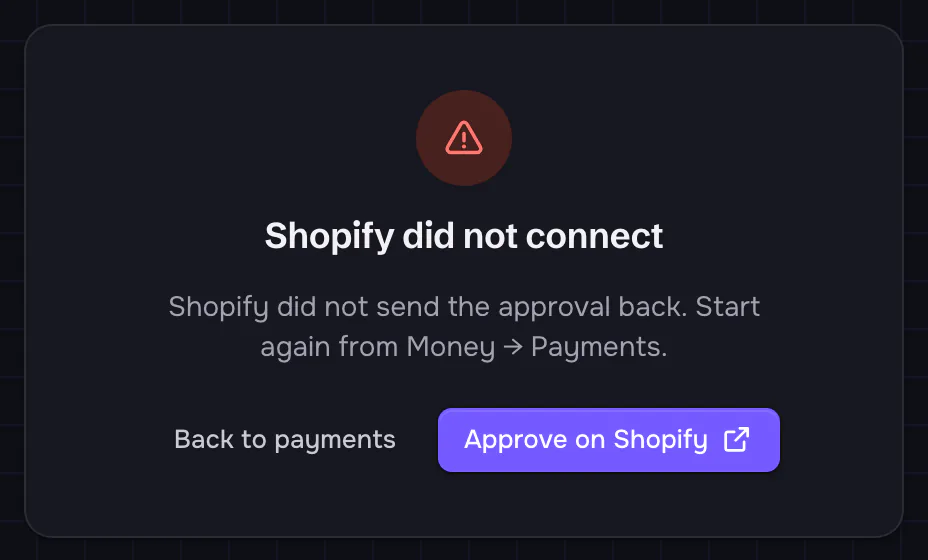
After you paste Shopify's keys, the row says **Finish setup** until you approve your app on Shopify. Click **Approve on
Shopify** on the row. Shopify asks you to approve the app and brings you back to ShopFast, which finishes the
connection. If you come back without Shopify's approval, the page says **Shopify did not connect**.

<figure class="doc-shot"><img src="https://shopfa.st/docs/img/get-paid/shopify-return.webp" alt="A card: 'Shopify did not connect. Shopify did not send the approval back. Start again from Money → Payments.' with the buttons Back to payments and Approve on Shopify." width="464" height="280" loading="lazy" decoding="async"><figcaption>The return page when Shopify did not send its approval.</figcaption></figure>

Click **Approve on Shopify** to try again. Check that the app's redirect URL in Shopify's Dev Dashboard is exactly
the one the panel gave you. More: [Shopify](https://shopfa.st/docs/selling/get-paid/gateways#shopify).

### Webhook not delivering

Payments are confirmed by the provider's notification. When those do not arrive, checkouts are started but never
marked paid, and the row's health says **Needs a look**, for example
**Only 1 of 6 checkouts were paid in the last 7 days. Check that payments confirm.**

- Where you add the webhook yourself (Razorpay, Paystack, NMI, Skinloop and PayPal Friends & Family), check the address
  is exactly the one in the panel, the events the step lists are ticked, and the secret you pasted matches. After you
  connect, the panel says **Payments confirm once the webhook you added in Razorpay delivers its first event.**
- Where ShopFast adds the webhook (Stripe, PayPal with keys, Square, Paddle, Authorize.Net), connect again with
  **Replace keys**: ShopFast adds its webhook again. Shopify's webhooks are added when you approve the app.
- Your provider's dashboard lists each delivery attempt and its answer.
- For Cash App, the row says **Waiting for the first Cash App receipt.** until a forwarded receipt arrives. Check the
  Gmail forwarding and filter ([Cash App](https://shopfa.st/docs/selling/get-paid/gateways#cash-app)).